
Install the app on Android
The app is not on the Play Store: you download a file (APK) from the official EXPanda address and install it. Android shows a few warnings along the way; below is what each one means and what to tap.
Time: Set aside about 5 minutes.
What you will need
- An Android 7.0 or newer phone (Settings → About phone shows the Android version).
- Internet (Wi-Fi or mobile data) to download the file.
- A little free space on the phone.
Stage 1 of 4
Download the file
On the phone
Open this page in the phone’s browser
Use Chrome or the browser that comes with the phone. If you are reading on a computer, open this same address on the phone.
Tap the button to download the app
The file EXPandaCelular.apk starts downloading. If the browser warns that this type of file can harm the device, tap to download or keep it anyway: the warning appears for any APK, not only ours.
The download is on your account: the button takes you to the downloads page (sign in with Google if you have not yet). Each click creates a link that lasts 10 minutes.
Stage 2 of 4
Let the phone install
On the phone
Open the downloaded file
Tap “Open” on the download-finished notice. If it is gone, open the Files app, go to the Downloads folder and tap EXPandaCelular.apk.
If the phone says it cannot install apps from this source, allow it
The first time, Android warns that the browser (or the Files app) is not allowed to install apps. Tap “Settings” (mark 1 in the figure). In the figure the warning comes from the Files app; if you opened the file from Chrome, the name in the warning will be “Chrome”.
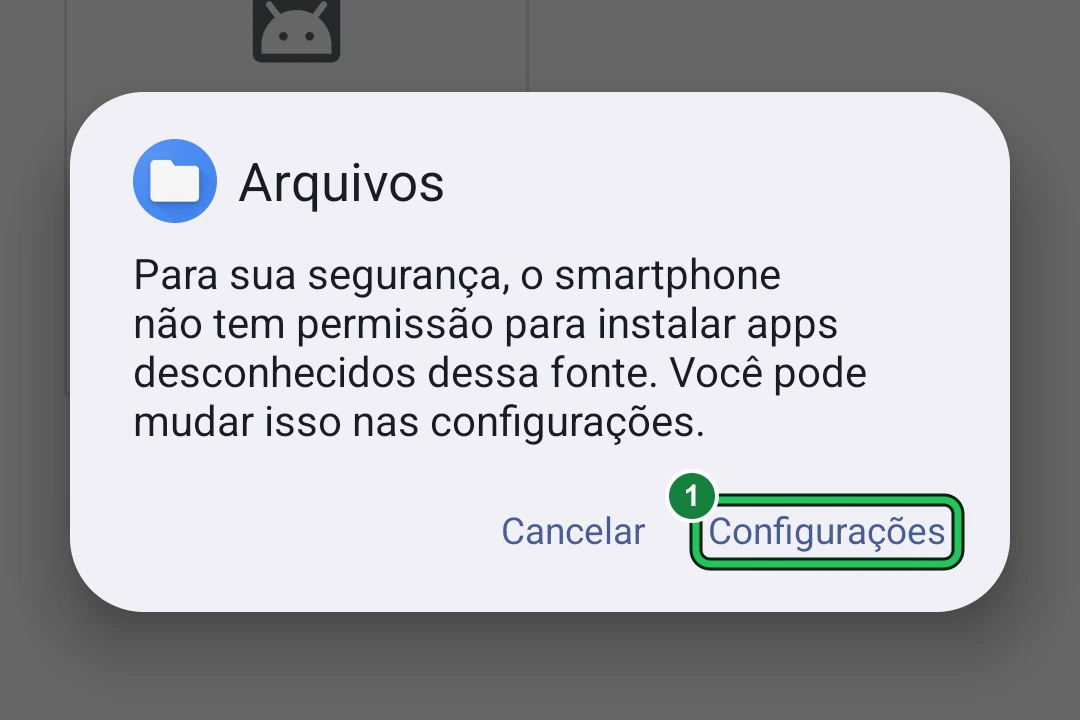
1 — “Settings” takes you to the screen where you allow the installation. If you tap “Cancel”, nothing is installed and the warning comes back next time. The figure is from an Android 15 set to Portuguese, and the name at the top of the warning is the app that opened the file (“Files” here). On your phone version or brand, the words and the design may be slightly different. The green mark was added to the image. Turn on “Allow from this source” and go back
On the “Install unknown apps” screen, tap the “Allow from this source” switch to turn it on (mark 1; in the figure it is still off; the name changes a little between brands). Then tap the back arrow at the top of the screen. On some phones the installation continues by itself; if it does not, tap the EXPandaCelular.apk file again.
Tip: On Android 7 the path is different: Settings → Security → turn on “Unknown sources”.
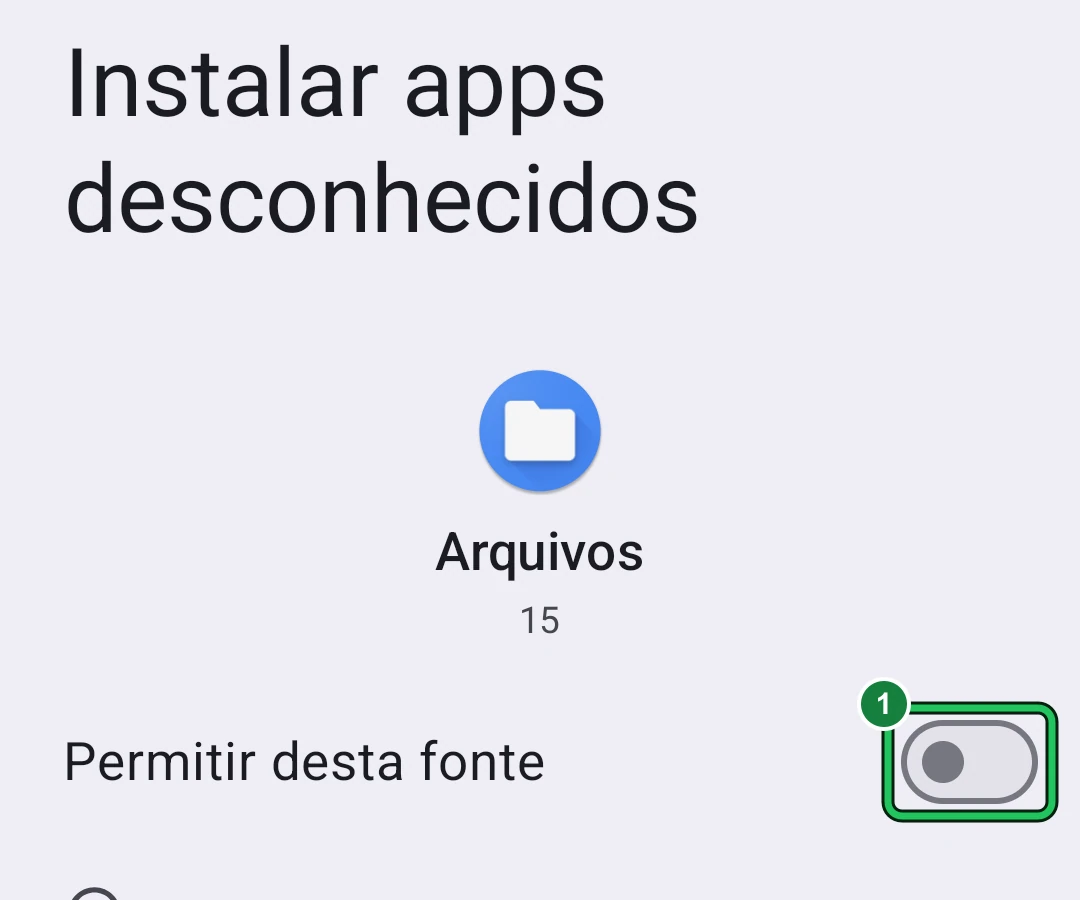
1 — The “Allow from this source” switch: tap it to turn it on (it is off in the figure). The permission only applies to the app that opened the file (“Files” here, or your browser). Then tap the back arrow; if the installation does not continue by itself, open the file again. The green mark was added to the image.
Stage 3 of 4
Install
On the phone
Tap “Install”
It is the button with mark 1. Wait a few seconds until “App installed” appears.
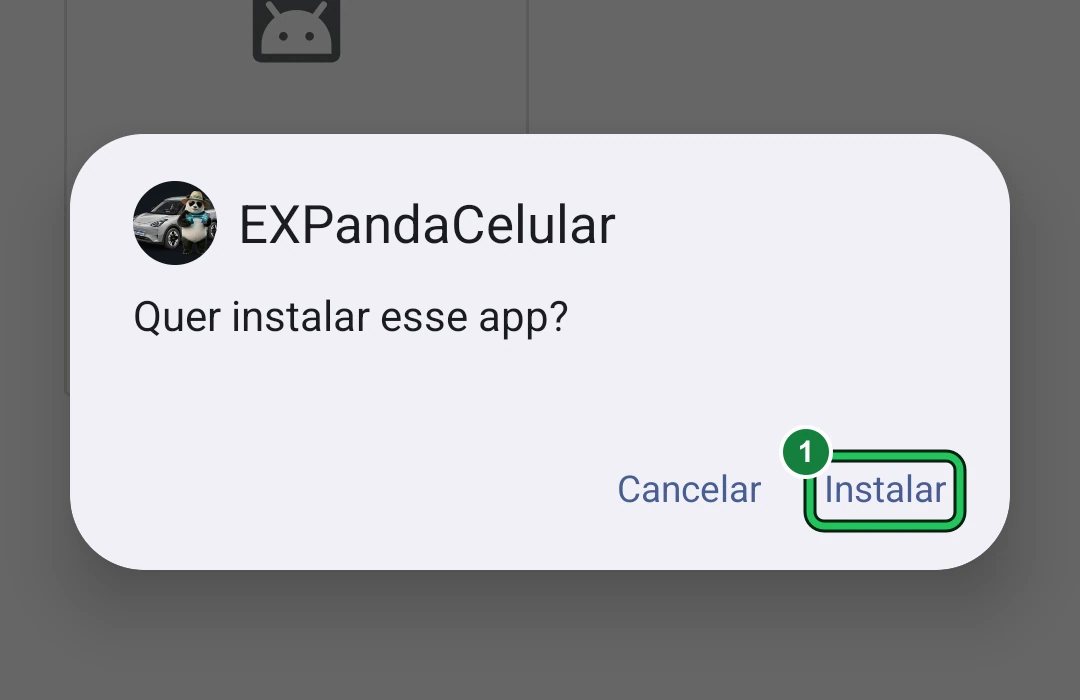
1 — “Install”. This window belongs to Android itself; the icon design and the words may vary from one phone to another. The green mark was added to the image. If a Google Play Protect warning appears, install anyway
It appears because the app does not come from the Play Store. Tap “More details” and then “Install anyway”. The exact wording changes a little between Android versions.
Stage 4 of 4
Open the app
On the phone
Tap “Open”
It is the button with mark 1, on the “App installed” screen. If that screen has already closed, look for the EXPandaCelular icon in the app list.
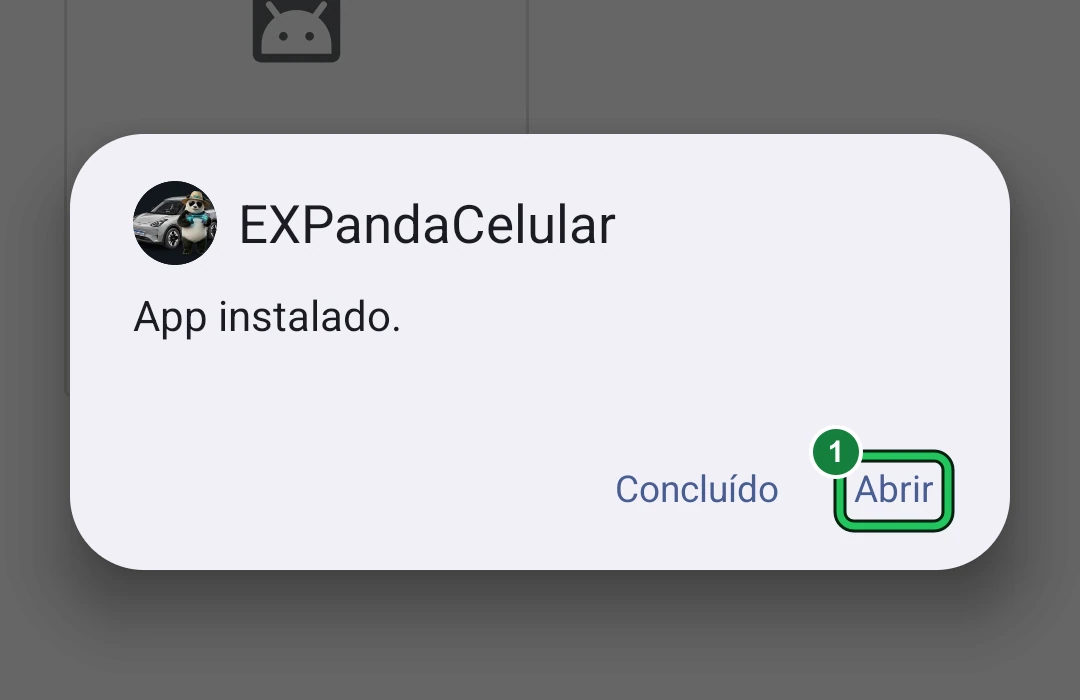
1 — “Open” opens the app now; “Done” closes the window, and you open the app later from the app list. The green mark was added to the image. Allow notifications
When it opens, the app asks whether it may send notifications. Tap “Allow” (mark 1) to receive the car alerts. Other access requests, such as location, only appear when you use the feature that needs them: read each one and allow what makes sense. On Android 12 or older, the notifications question does not appear.
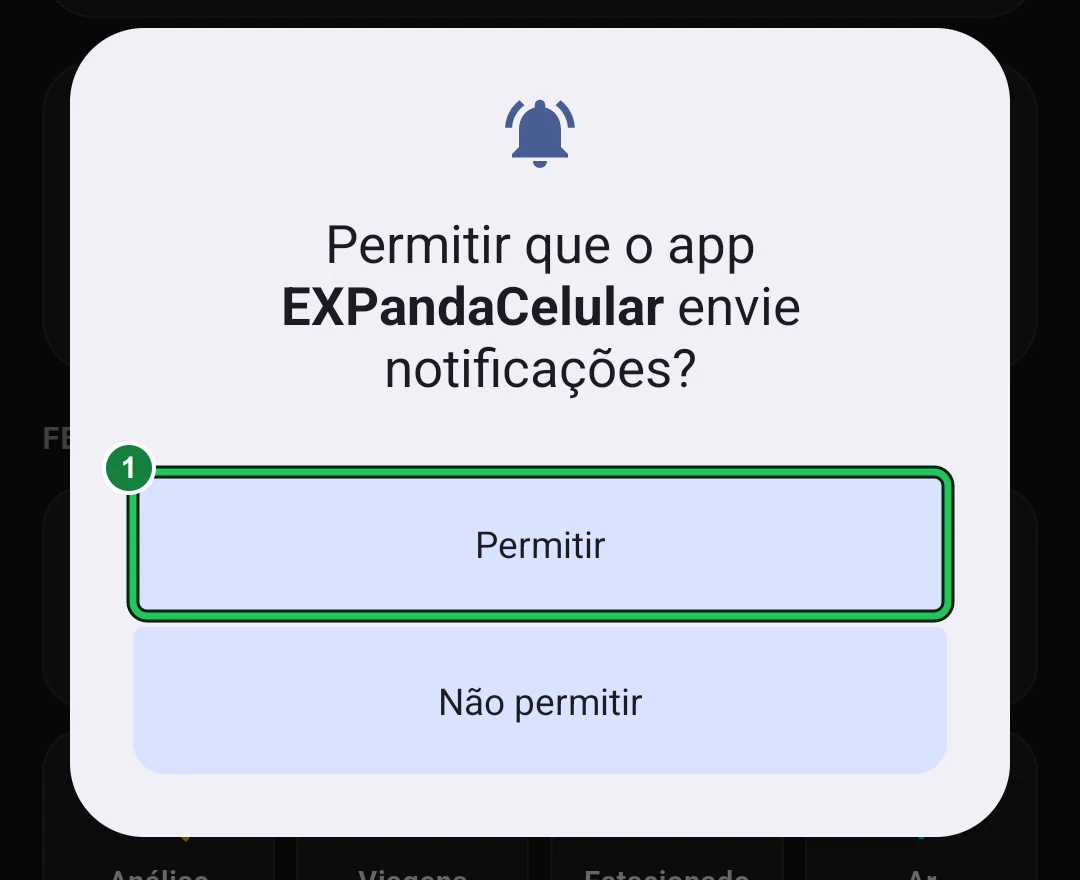
1 — “Allow”. This question comes from Android itself (from version 13 on) and only appears the first time. If you tap “Don’t allow”, the app cannot show alerts; you can change that later in the phone settings. The green mark was added to the image. Sign in with your Google account
In the app, tap the “Connection” tab, then “EXPanda account”, then “Sign in with Google” (mark 1). It is the same account you use on the EXPanda website; with it, your car is linked to you and the Store and updates keep arriving. The account is required the first time: until you sign in, the app shows only the sign-in screen and nothing from EXPanda works; once you sign in, the app gets its release and works. Done: the app is installed.
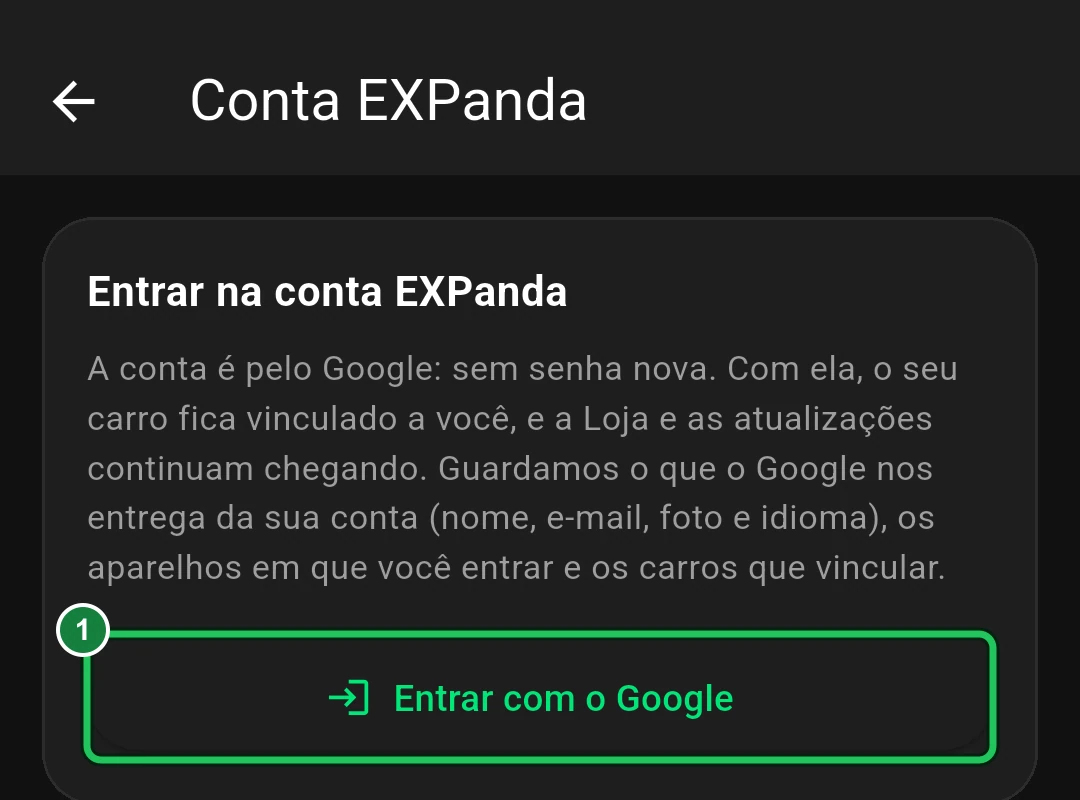
1 — “Sign in with Google”: the account is through Google, with no new password. The figure shows the app in Portuguese. The green mark was added to the image.
If something goes wrong
“App not installed” appears.
Check that the phone has free space. If you already have a copy of EXPandaCelular installed from another source (a test version, for example), uninstall it and install again.
The “Install” button is missing or greyed out.
Go back to stage 2 and turn on the permission to install apps from this source (or “Unknown sources” on Android 7).
I cannot find the file I downloaded.
Open the Files app (or My Files) → Downloads → EXPandaCelular.apk. In Chrome, the ⋮ menu → Downloads also lists the file.
Play Protect blocked it and will not let me install.
Tap “More details” → “Install anyway”. If that option does not exist, open the Play Store → tap your photo → Play Protect → the gear, turn off “Scan apps with Play Protect”, install the app and turn the option back on.
My phone is Android 6 or older.
The app does not install on those phones. Use another phone (Android 7 or newer) or an iPhone.
The app opens only on the sign-in screen, asking for the account.
That is expected until you sign in: without the account nothing from EXPanda works. Tap “Sign in with Google” and use the same account as on the EXPanda website. If you already signed in and the screen comes back, check the phone’s internet and try again.
Done? Now install the central in the car
With the app open, go back to the central guide and continue from step 4: the app installs EXPanda Central in the car.
Go to step 4 of the guide