EXPanda Central installation guide
From the USB drive to a connected car, in plain language. You prepare the USB drive once; after that, the app does the rest, with no computer.
This guide was last reviewed on October 20, 2026.
The programs and addresses in this guide were checked on October 12, 2026.
Where to start
You don't have to read everything in order. Pick your case and go straight to it.
Don't have the EXPanda Celular app on your phone yet?
Was the USB drive already applied, and is the connection (ADB) already on in the car?
Step 3 — Put the car on your phone's Wi-FiIs the car already on the same network as the phone?
Step 4 — Install EXPanda Central from the appIs EXPanda Central already installed in the car?
Step 5 — After installingWant to update what you already installed?
Update what you already installedDid something go wrong?
If something didn't work
Before you start
EXPanda Central is the app that runs on the Geely EX2 head unit. It is installed by the EXPanda Celular app, over Wi-Fi and with no computer. For the phone to talk to the car, a connection in the car must be on: it is called ADB, it uses port 5555 and it comes switched off from the factory. The ADB activation USB drive switches it on, once.
Read this before you start
This path is at your own risk. The package author's tutorial warns that the dealership may notice that the head unit was modified, that the head unit's warranty may be affected, and that there is no public low-level recovery method. The USB drive does one thing only (it turns on the connection between the app and the car) and erases nothing, but the decision is yours.
What you need
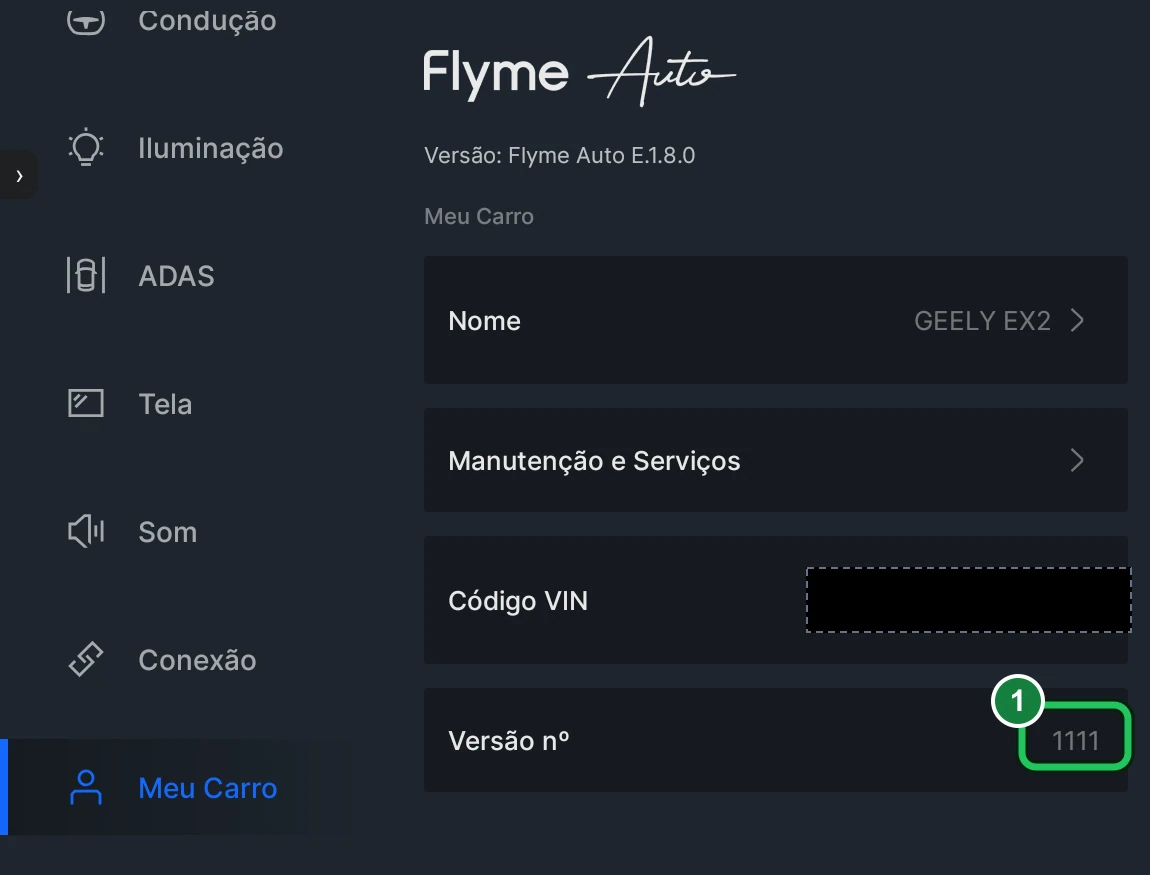
- A Geely EX2 with the IHU629G head unit, version 1111 or 1114. To check: Vehicle settings → last option → My car (if the screen is in Portuguese: Configurações do veículo → última opção → Meu carro).
- An Android 7 or newer phone, or an iPhone, with the EXPanda Celular app installed and your EXPanda account (it works through Google: no new password).
- An ordinary USB drive of up to 32 GB and a computer, only to copy the folder onto the drive.
- The car on and in P while you do steps 2 to 4.
On your phone: Android or iPhone
Install the EXPanda Celular app. It is the one that installs EXPanda Central on the car.
Android 7 or newer
- Open the downloads page, sign in with Google if it asks, and tap Download the APK.
- When it finishes, open the file. If the browser or the phone asks, allow installing from this source.
- Open the app and sign in with your Google account.
iPhone
- The iPhone app is outside Apple's App Store. Use SideStore (the one we recommend) or Sideloadly: the full step-by-step guide, with the download links, is right below.
- After installing, tap Trust: Settings → General → VPN & Device Management.
- On iOS 16 or newer, turn on Developer Mode: Settings → Privacy & Security → Developer Mode (the iPhone restarts).
- Open the app, sign in with your account and, when the iPhone asks, allow access to the local network: the app needs it to talk to the car.
Note: installing the head unit app from an iPhone is still being validated. If the app cannot find the car, do only step 4 with an Android phone.
Install the EXPandaCelular app on your phone
Step 1
Prepare the ADB activation USB drive
This is the USB drive that turns on the connection between the app and the car. It does one thing only: it writes to the car the setting that keeps port 5555 (ADB) open. It installs nothing, erases nothing and does not replace the head unit software. You do this once.
Already done this step? Skip to: Step 2 — In the car: turn the connection on
- Format the USB drive as FAT32. Windows formats drives of up to 32 GB as FAT32; for a bigger drive, use a formatter such as guiformat.
- Download the package for your version (1111 or 1114) and copy the whole folder to the root of the drive, without opening or extracting anything.
- Check the path: the file must end up at FolderName\OS\update.zip, with update.zip still closed (do not extract it).
- Safely eject the USB drive on the computer.
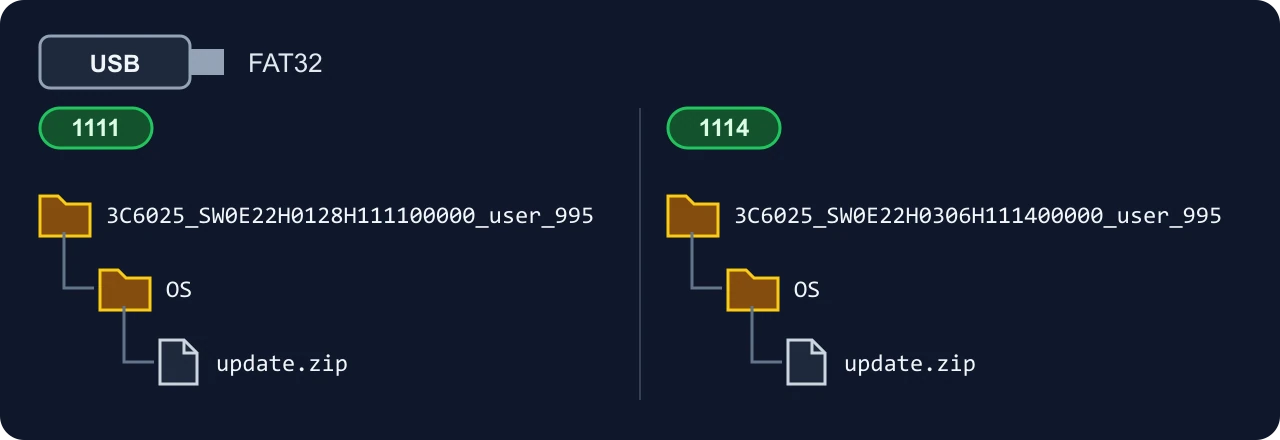
The package comes from the author of the original tutorial. Download the folder for your version from that tutorial: Package author's tutorial (blog)
The package is free: never pay for this file.
Step 2
In the car: turn the connection on
Now, in the car. The hidden menu code changes every hour; the one shown below is for the current hour.
Already done this step? Skip to: Step 3 — Put the car on your phone's Wi-Fi
The head unit's hidden menu code
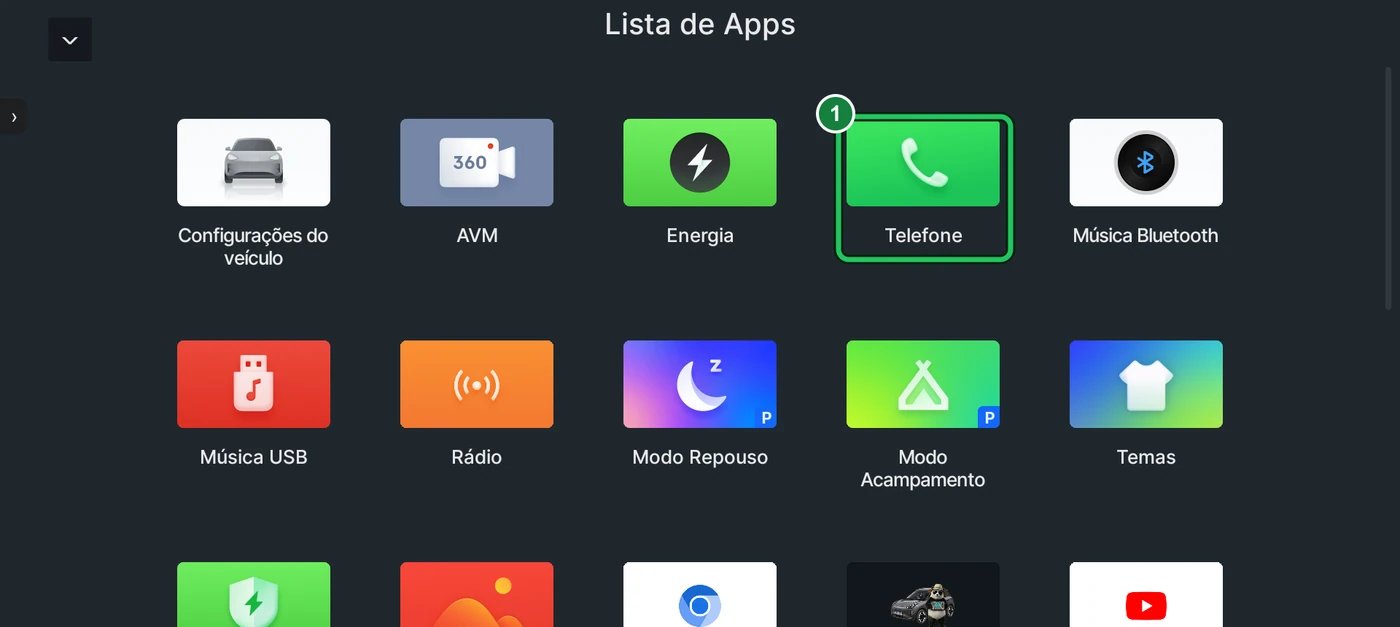
On the Geely EX2 head unit: turn Bluetooth off, open the head unit's Phone app and type the code. It opens the hidden menu (not the developer screen). It changes every hour.
The head unit's hidden menu code changes every hour. Open this guide on the site to see the current code.
- Turn the car on with your foot on the brake, shift to D and back to P. This keeps the head unit from switching itself off halfway.
- Plug in the USB drive and wait for the head unit to recognize it.
- Turn the head unit's Bluetooth off.
- Open the head unit's Phone app and type the hidden menu code shown above. The hidden menu opens by itself.
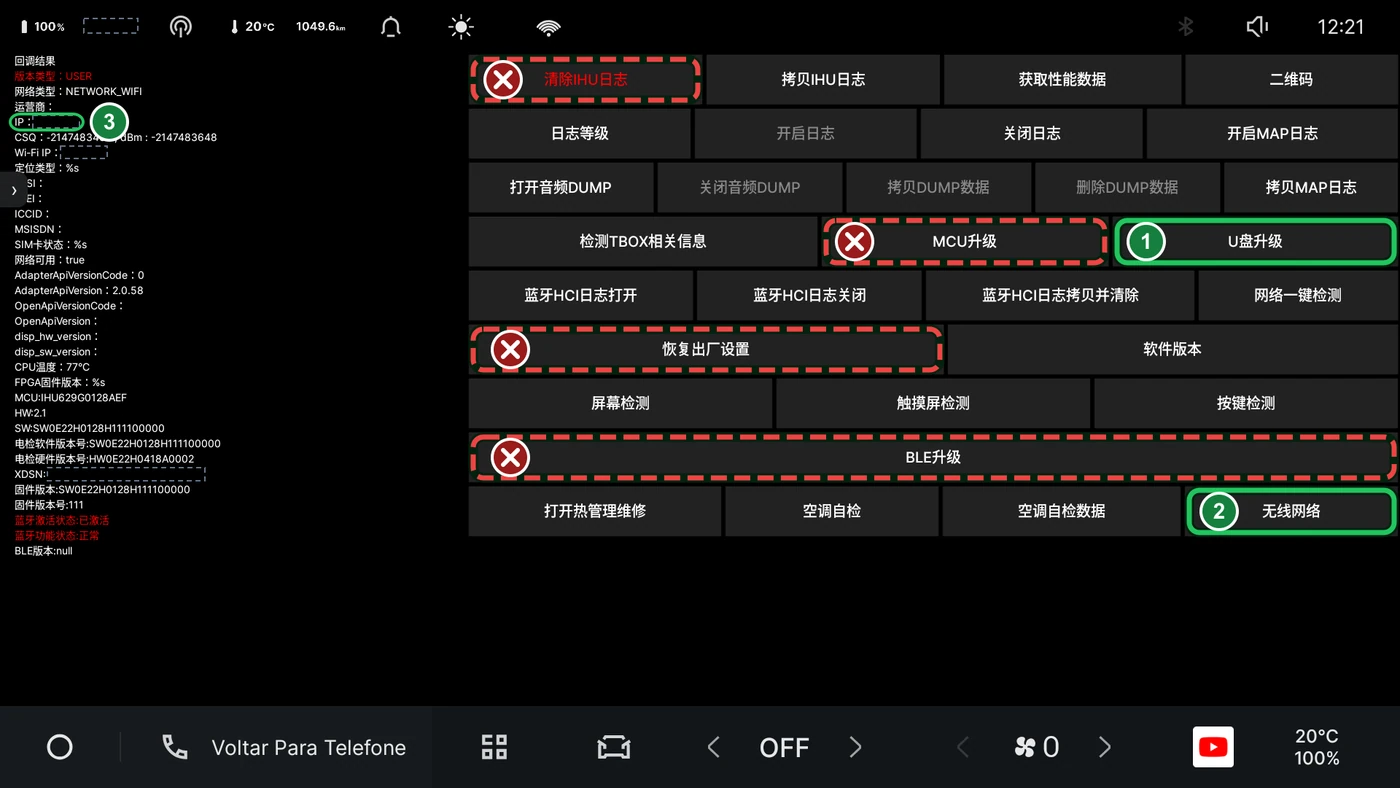
- In the hidden menu, tap button 1 in the figure: Update from USB drive (U盘升级). The head unit checks the package, restarts in recovery mode and applies it by itself, with nothing for you to do.
- At the end an error message appears. That is expected: it is part of the process and nothing was erased. Hold Back + Music on the steering wheel, without letting go, until the head unit restarts.
Done: port 5555 is on and you no longer need the USB drive. If you need to repeat it, no problem: the package does not duplicate what was already written.
Step 3
Put the car on your phone's Wi-Fi
The app and the car must be on the same network. The simplest way is to have the car join your phone's hotspot.
Already done this step? Skip to: Step 4 — Install EXPanda Central from the app
- On the phone, turn the hotspot on and write down the network name and password.
- In the car, open the hidden menu again: Phone app, Bluetooth off and the code for the current hour.
- Tap button 2 in the figure: Wireless network (无线网络). Then tap Wi-Fi, choose your phone's hotspot and type the password.
- When the car joins the network, its address (the IP) shows in the left column of the hidden menu. Write it down: the app may ask for it.
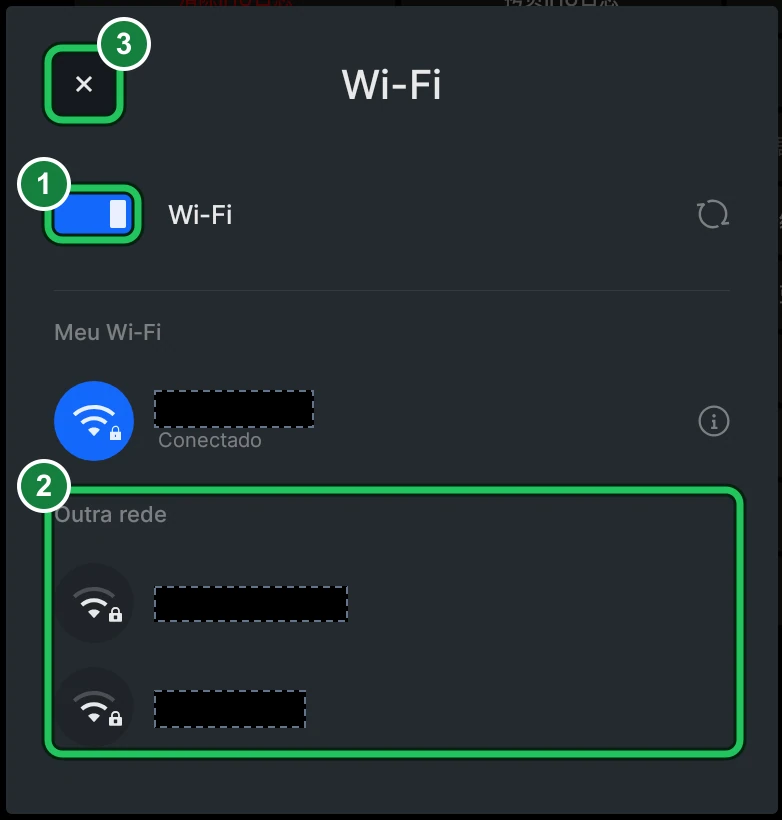
Some phones switch the hotspot off by themselves when nobody is connected. If the network disappears, turn it on again and keep the hotspot on until the install is finished.
Step 4
Install EXPanda Central from the app
With the phone and the car on the same network, the app does the rest.
Already done this step? Skip to: Step 5 — After installing
- Open the EXPanda Celular app and go into the EXPanda Master Store.
- At the top of the Store, tap the briefcase-with-a-cross icon (Install the head unit software in the car through ADB).
- Tap Find the car on the network. If the app doesn't find it, type the IP that showed in the hidden menu and tap Test the connection.
- Tap Install in the car through ADB and confirm. The app downloads the software, checks its SHA-256 and sends it to the car. Do not switch the head unit off while it sends.
- At the end, the app pairs the phone with the head unit by itself, tries to link the car to your account, and tells you it is up and running. If the account link does not finish, the app says how to complete it (see «After installing»).
Don't have the app on your phone yet? Install the app on your phone
Before installing, the app checks that the ADB activation became permanent and completes whatever is missing.
Step 5
After installing
EXPanda Central is now in the car. What is left is linking the car to your account and turning on Android Auto and CarPlay projection.
Already done this step? Skip to: Update what you already installed
- The first time, the head unit shows «Link this car to your EXPanda account». Without the account nothing from EXPanda turns on and the car keeps running only its factory software. Pick one way: point your phone camera at the QR code and continue with Google; or, on a computer or another phone, open the address below the QR code and type the code; or, if the car has no internet, open the EXPanda Celular app, sign in to your account and tap «Link this car». When the account confirms, the screen opens EXPanda by itself.
- If the car had Sapo’s head unit app, EXPanda asks what to do. Tap «Import and remove»: it brings over your settings and the latest trips and charges, and removes Sapo’s app, because the two cannot control the car at the same time. With «Not now», nothing from EXPanda turns on and the question comes back next time.
- On the head unit, open Network & Auto, then the AA & CarPlay tab, and turn on Android Auto + CarPlay Wi-Fi.
- On the first activation, restart the head unit so wireless Android Auto and CarPlay work: hold Back + Music on the steering wheel for about 15 seconds.
- From now on, the app can update or repair EXPanda Central whenever needed, the same way as step 4.
Update what you already installed
New versions of the head unit software and of the apps come out from time to time. The USB drive is a one-time thing: to update you need neither it nor the hidden menu.
How to know there is a new version
The app tells you: on the Dashboard and in the Connection tab it shows “Update available: v…” (on iPhone, “New IPA available: v…”). To check right now, tap the refresh icon in the Connection tab (Check for updates). The newest version of each program is also in the “The apps and the OBD adapter” section just below.
Update EXPanda Central in the car
- With the car on and parked, turn on the phone hotspot and make sure the car is on its network (step 3).
- In the EXPanda Celular app, go into the EXPanda Master Store and tap the briefcase-with-a-cross icon, the same as in step 4.
- Tap Find the car on the network, then Install in the car through ADB. The app sends the new version and installs it over the one in the car; repeating it is harmless.
- Do not switch the head unit off while it sends. At the end, the app tells you the head unit software is up and running.
Update the app on Android
- Open EXPanda Celular. When there is a new version, the Dashboard and the Connection tab show “Update available: v…”.
- Tap that notice: the app opens the download of the new file in the phone browser.
- Open the downloaded file (from the notifications or the Files app) and confirm the update. If Android asks permission to install apps from this source, allow it, as the first time.
- Open the app again and check in the Connection tab that it is still connected to the head unit.
Update the app on iPhone
- iOS does not update the app by itself. EXPanda Celular tells you “New IPA available: v…” and sends you to install it through SideStore.
- Connect LocalDevVPN, open SideStore and go to My Apps. Next to EXPandaCelular you will see Update; tap it.
- If you installed with Sideloadly, download the new file and install it again, through the computer and the cable: it updates over the old one.
- Open the app and check in the Connection tab that it is still connected to the head unit.
The app on iPhone lasts 7 days and has to be renewed; SideStore does it by itself, with LocalDevVPN connected. The figures and details are in the iPhone guide.
The apps and the OBD adapter
Everything EXPanda offers to download, with each version, and the OBD-II adapter the phone app can use (optional).
If something didn't work
The head unit doesn't offer the package or doesn't find the USB drive.
Check that the drive is FAT32, that the folder is at the root with the exact name of your version (1111 or 1114) and that OS\update.zip is inside it, not extracted. A folder named for another version is not offered. Unplug the drive and plug it in again.
The hidden menu code doesn't open the menu.
Turn the head unit's Bluetooth off and type the code in the head unit's Phone app (not in search). The code is worked out on Brasília time and changes every hour: use the one shown in this guide when you type it. If the hour changed while you were typing, type it again.
The head unit switched off halfway.
Before starting, turn the car on with your foot on the brake, shift to D and back to P, and keep the car on. If the head unit switches off halfway, you may need to repeat step 2 from the start.
The app doesn't find the car on the network.
Check that the USB drive was applied (step 2), that the car joined the phone's hotspot (Wireless network → Wi-Fi) and that the hotspot is still on. Type the IP shown in the left column of the hidden menu. The phone that has the hotspot on can see the car; if you use another phone or a router, both must be on the same network.
The app says ADB is not open.
The USB drive was not applied yet or did not finish. Repeat step 2. Repeating is harmless.
The install failed halfway through sending.
Keep the car and the hotspot on and don't switch the head unit off. Tap install again.
The head unit shows «Link this car to your EXPanda account», or says the car is in factory mode.
That is expected until the account confirms, or when the account has expired or been blocked: nothing from EXPanda turns on and the car keeps only its factory software, with none of its own functions lost. Link it with the QR code (through Google), with the address below the QR code, or, if the car has no internet, in the EXPanda Celular app: «Connection» → «EXPanda account» → «Link this car to the account». If the car’s clock is wrong, the server refuses the code: set the date and time, or leave the car on with internet.
I had Sapo’s head unit app in the car. What happens?
The two cannot control the car at the same time. On the first activation EXPanda asks: «Import and remove» brings over your settings and the latest trips and charges and removes Sapo’s app; «Not now» leaves everything as it is and the question comes back later. If someone installs Sapo’s app on top later, EXPanda removes it by itself and says so. To go back to Sapo’s app, uninstall EXPanda first.
I want to undo everything.
EXPanda Central can be uninstalled at any time. To also remove the ADB activation, factory-reset the head unit: Vehicle settings → last option → My car (if the screen is in Portuguese: Configurações do veículo → última opção → Meu carro). This removes every app you installed. The package author warns that the head unit keeps internal records that it was modified, even after being reverted.
Android warned that the app is from an unverified developer.
Since 30 September 2026, Google verifies the developers of apps installed from outside the Play Store on certified Android phones in Brazil; the warning comes from Android, not from EXPanda. Android has an advanced path for people who install such apps, done once: turn on developer mode, restart, wait a day and confirm. If you have a computer, you can also install through ADB, which stays as it was. If this happens to you, tell us in the community group so we can adjust this guide.
Which version should I use: stable or experimental?
The stable one, which we recommend: it is the one that was tested and the one this guide describes. The experimental one is for the team and for people who help test what is still being tried out, and it may have defects. If in doubt, stay on stable.
How do I know a new version is out, and how do I update?
The app tells you when there is a new version. The “Update what you already installed” section of this guide shows the way for the head unit software, the Android app and the iPhone app. You do not need to redo the USB drive.
The iPhone app stopped opening after a few days.
The app's signature on the iPhone lasts 7 days. Connect LocalDevVPN, open SideStore, go to My Apps and tap Refresh All. If you use Sideloadly, install the same file again through the computer. The details are in the iPhone guide.
Still need help?
Talk to the EXPanda community: the Telegram bot, the releases channel, the group and Instagram.