
Install the app on iPhone with Sideloadly
A computer program installs the app on the iPhone over the cable. It is the shortest path, but the app lasts 7 days and has to be renewed from the computer. Note: on this path, screen mirroring from the iPhone to the car does not work; for it, use SideStore.
Time: Set aside about 20 minutes the first time.
What you will need
- An iPhone with iOS 15 or newer and a passcode set.
- A computer with Windows 7 or newer, or a Mac with macOS 10.12 or newer, and a USB cable.
- A free Apple account (Apple ID). It can be an account just for this.
- One free slot: the iPhone accepts at most 3 apps installed this way.
Stage 1 of 6
Prepare the computer
On the computer
On Windows, install iTunes and iCloud from Apple’s website
Sideloadly needs the versions from Apple’s website, not the Microsoft Store ones. If you already have the Microsoft Store ones, uninstall them first. On a Mac, skip this step.
Download and install Sideloadly
Open the downloaded file and follow the installer.
Stage 2 of 6
Download the EXPanda app
On the computer
Download the iPhone app file (EXPandaCelular.ipa)
Keep the file somewhere easy to find, such as the Downloads folder.
The download is on your account: the button takes you to the downloads page (sign in with Google if you have not yet). Each click creates a link that lasts 10 minutes.
Stage 3 of 6
Install with Sideloadly
On the computer, with the iPhone on the cable
Connect the iPhone to the computer with the cable
If the iPhone asks “Trust This Computer?”, tap “Trust” and type the iPhone passcode.
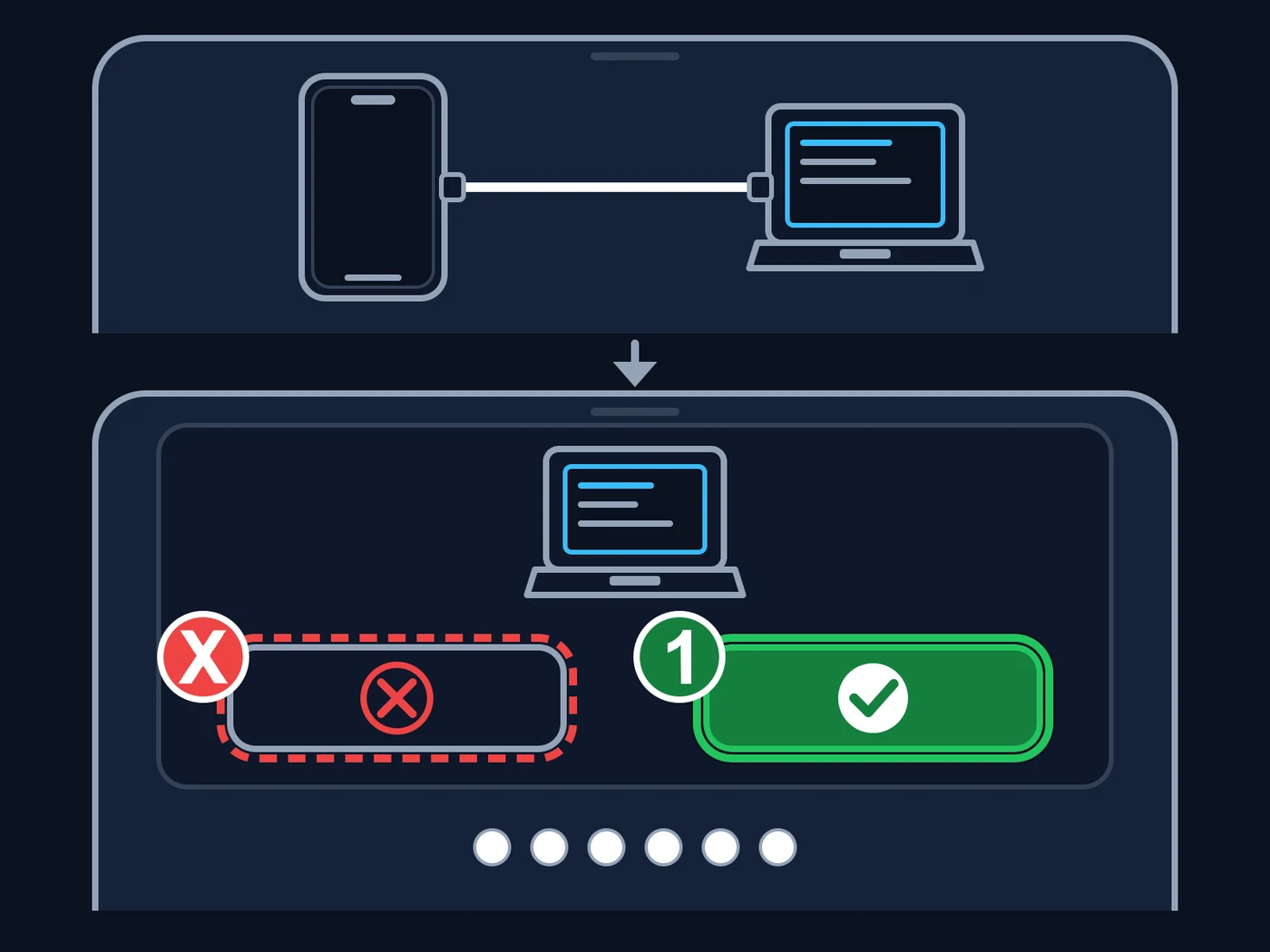
Illustration, not the real screens. Top: connect the iPhone to the computer with the cable. Bottom, the prompt the iPhone shows: 1 — “Trust” (the green button with the check mark): tap it and type the iPhone passcode (the six dots). Red X: the “Don’t Trust” button; do not tap it, because without trust the computer cannot talk to the iPhone. If you tap it by mistake, unplug the cable and plug it in again; the prompt usually comes back. The X, the number and the green mark were added to the image. Open Sideloadly and drag the EXPandaCelular.ipa file into it
Drag the file onto the square in the top-left corner (mark 3 in the figure). Your iPhone shows up in the “iDevice” list (mark 1). If it does not, change the cable and check that iTunes is the one from Apple’s website.
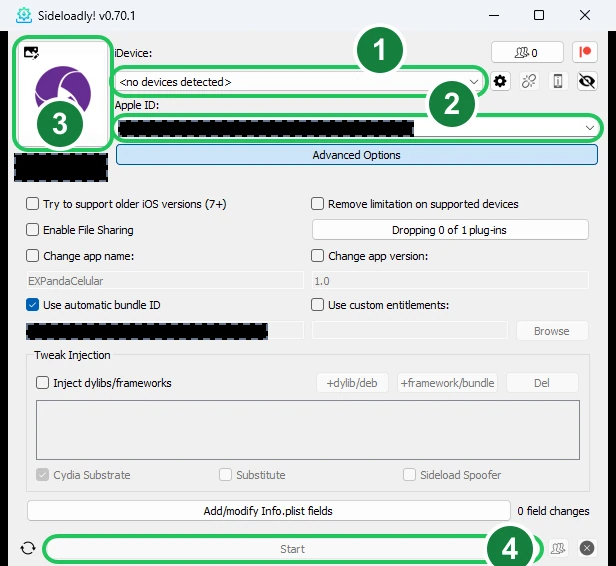
1 — The iPhone connected by cable appears in this list (none was connected for the figure). 2 — The Apple ID of the account; in the figure it is covered by a black bar. 3 — Drag the EXPandaCelular.ipa file onto this square. 4 — “Start” begins the installation; in the figure it is grey because no iPhone is connected. The other black bars cover the name and identifier of a test file that was loaded. This is Sideloadly 0.70.1. The numbers and green marks were added to the image. Type your Apple ID
In the “Apple ID” field (mark 2 in the figure), type the e-mail of the account. A free account is enough.
Click “Start” and type the Apple password when the program asks
The “Start” button is mark 4 in the figure. You type the password only in Sideloadly, on your computer. Wait for the installation to finish.
Stage 4 of 6
Trust the app and turn on Developer Mode
On the iPhone
Open Settings → General → VPN & Device Management
Under “Developer App”, tap the name of your Apple account and then “Trust”. On iOS 18 or newer the button is “Allow & Restart”. The figure shows the whole path, from Settings to the trust button.
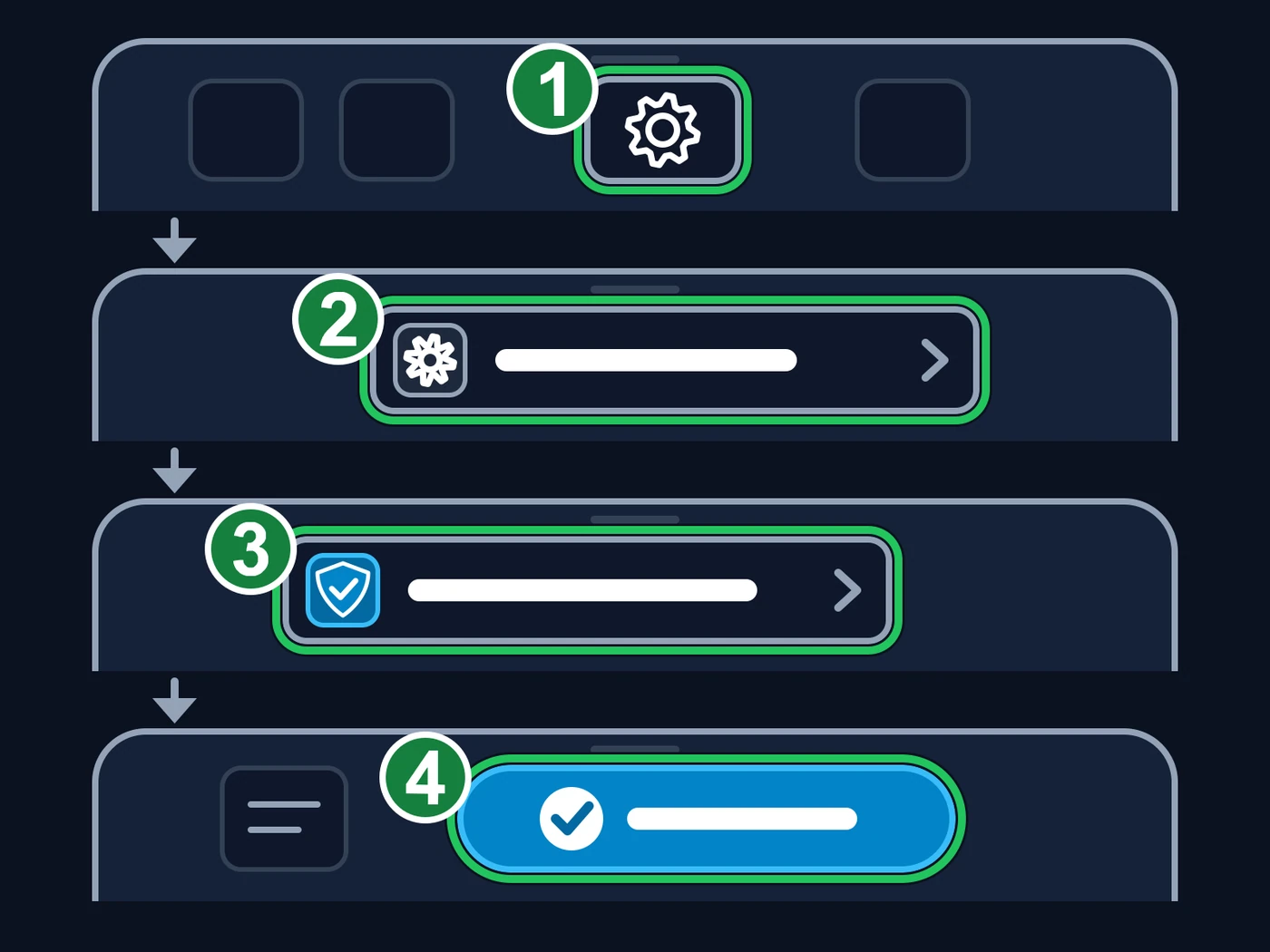
Illustration, not the real screens: the names and the position of the buttons change from one iOS version to another, but the order is this. 1 — Open “Settings” (the gear). 2 — Tap “General”. 3 — Tap “VPN & Device Management”. 4 — Tap the name of your Apple account and then “Trust” (on iOS 18 or newer, “Allow & Restart”). The numbers and green marks were added to the image. On iOS 16 or newer, turn on Developer Mode
Open Settings → Privacy & Security, scroll to the bottom and turn on “Developer Mode”. The iPhone restarts. When it comes back, confirm with “Turn On” and type the passcode.
Tip: On iOS 15 this step does not exist.
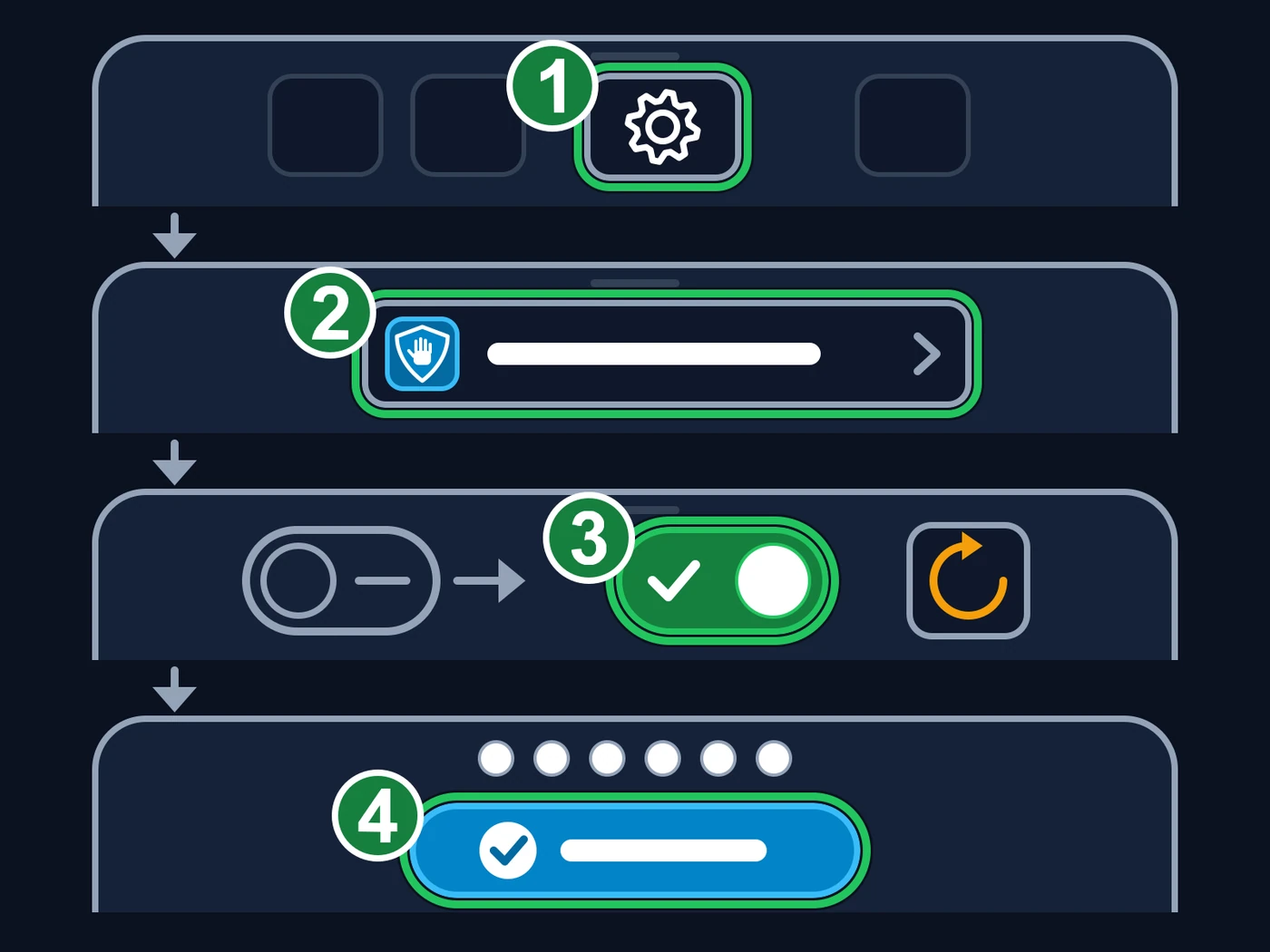
Illustration, not the real screens: the names and the position of the buttons change from one iOS version to another, but the order is this. 1 — Open “Settings” (the gear). 2 — Tap “Privacy & Security” (the shield with the hand) and scroll to the bottom. 3 — Turn on “Developer Mode”: the switch turns green and the iPhone restarts (the circular arrow). 4 — When it comes back, tap “Turn On” and type the iPhone passcode (the six dots). The numbers and green marks were added to the image.
Stage 5 of 6
Open the app
On the iPhone
Open EXPandaCelular and accept local network access
The first time, the iPhone asks whether the app may find devices on the local network. Tap “OK”: without it the app cannot find the car. Then sign in with your Google account when the app asks: without the account it shows only the sign-in screen and nothing from EXPanda works.
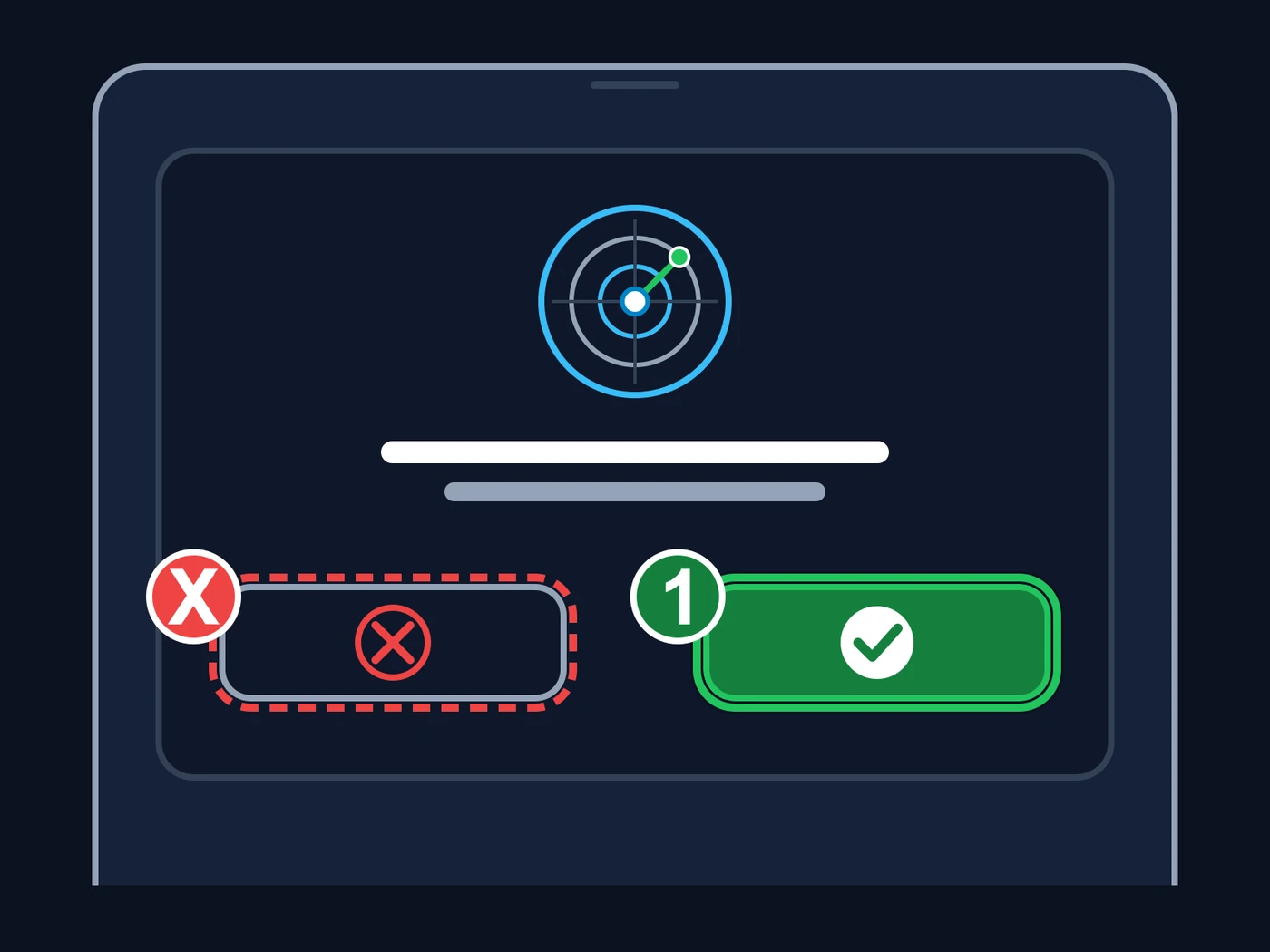
Illustration, not the real screen: the first time, the iPhone asks whether the app may find devices on the local network (the radar). 1 — “OK” (the green button with the check mark): tap it; without it the app cannot find the car. Red X: the “Don’t Allow” button; do not tap it. If you tapped it by mistake, open Settings → Privacy & Security → Local Network on the iPhone and turn on EXPandaCelular. The X, the number and the green mark were added to the image.
Stage 6 of 6
Renew every 7 days
On the computer
Renew by hand: connect the iPhone to the computer and install the same file again
Before the 7 days run out (or when the app stops opening), repeat stage 3: same computer, same EXPandaCelular.ipa file, same Apple ID, and click “Start” (mark 4 in the figure). The app is re-signed and gets 7 more days. Next to the Apple ID field, the list shows how many identifiers the account can still create (“App IDs Remaining”).
Tip: You do not need to delete the app from the iPhone before renewing.
1 — The iPhone connected by cable appears in this list (none was connected for the figure). 2 — The Apple ID of the account; in the figure it is covered by a black bar. 3 — Drag the EXPandaCelular.ipa file onto this square. 4 — “Start” begins the installation; in the figure it is grey because no iPhone is connected. The other black bars cover the name and identifier of a test file that was loaded. This is Sideloadly 0.70.1. The numbers and green marks were added to the image. Optional: let Sideloadly renew by itself
Sideloadly has an automatic renewal, which its official website describes: with the program open on the computer and the iPhone within reach (on the cable, or on the same Wi-Fi network with Wi-Fi sync turned on in iTunes or Finder), it renews the app before the 7 days run out. EXPanda has not tested this option yet: do not rely on it alone and, if the app stops opening, renew by hand as in the previous step.
When a new version comes out, download the file again and repeat stage 3
Installing over the old one updates the app.
If something goes wrong
Sideloadly does not show the iPhone in the list.
Check the cable (use one that carries data), make sure the iPhone screen is on and that it trusts the computer, and that iTunes is the one from Apple’s website. On Windows, if the iPhone still does not show up, reinstall iTunes with the stage 1 button.
An error about the app limit or the identifier (App ID) limit appears.
A free account allows 3 apps at the same time and 10 identifiers per week. Delete an app installed this way (press and hold its icon → “Remove App”) or wait a few days. If only identifiers are short, open “Advanced Options” in the Sideloadly window and turn on “Remove App Extensions (PlugIns)”: the app takes fewer identifiers (and, on this path, screen mirroring no longer works anyway).
The app opens and closes right away, or says the developer is not trusted.
Redo stage 4 (Settings → General → VPN & Device Management → Trust) and check that Developer Mode is on.
The app stopped opening after a few days.
The 7 days of the signature have passed. Connect the iPhone to the computer and install the file again (stage 6).
Screen mirroring from the iPhone to the car does not work.
It is expected on this path: Sideloadly re-signs the app and the mirroring extension does not run. To have mirroring, use SideStore.
The app opens only on the sign-in screen, asking for the account.
That is expected until you sign in: without the account nothing from EXPanda works. Tap “Sign in with Google” and use the same account as on the EXPanda website. If you already signed in and the screen comes back, check the phone’s internet and try again.
Done? Now install the central in the car
With the app open, go back to the central guide and continue from step 4. Honest warning: installing the central from an iPhone is still being validated. If the app does not find the car, do only step 4 with an Android phone.
Go to step 4 of the guide