
Install the app on iPhone with SideStore
You prepare the iPhone and the computer once, put SideStore on the iPhone and, through it, install the EXPanda app. After that SideStore handles the renewals. There are seven short stages: do one at a time.
Time: Set aside half an hour the first time.
What you will need
- An iPhone with iOS 15 or newer and a passcode set.
- A computer with Windows 8 or newer, or a Mac (only the first time), and a USB cable.
- A free Apple account (Apple ID). It can be an account just for this.
- Wi-Fi on the iPhone and on the computer (mobile data does not work).
- One free slot: the iPhone accepts at most 3 apps installed this way, and SideStore already takes one.
Stage 1 of 7
Install LocalDevVPN
On the iPhone
Download LocalDevVPN from the App Store
It is a free app that creates a VPN only inside the iPhone. SideStore uses that VPN to talk to the device itself.
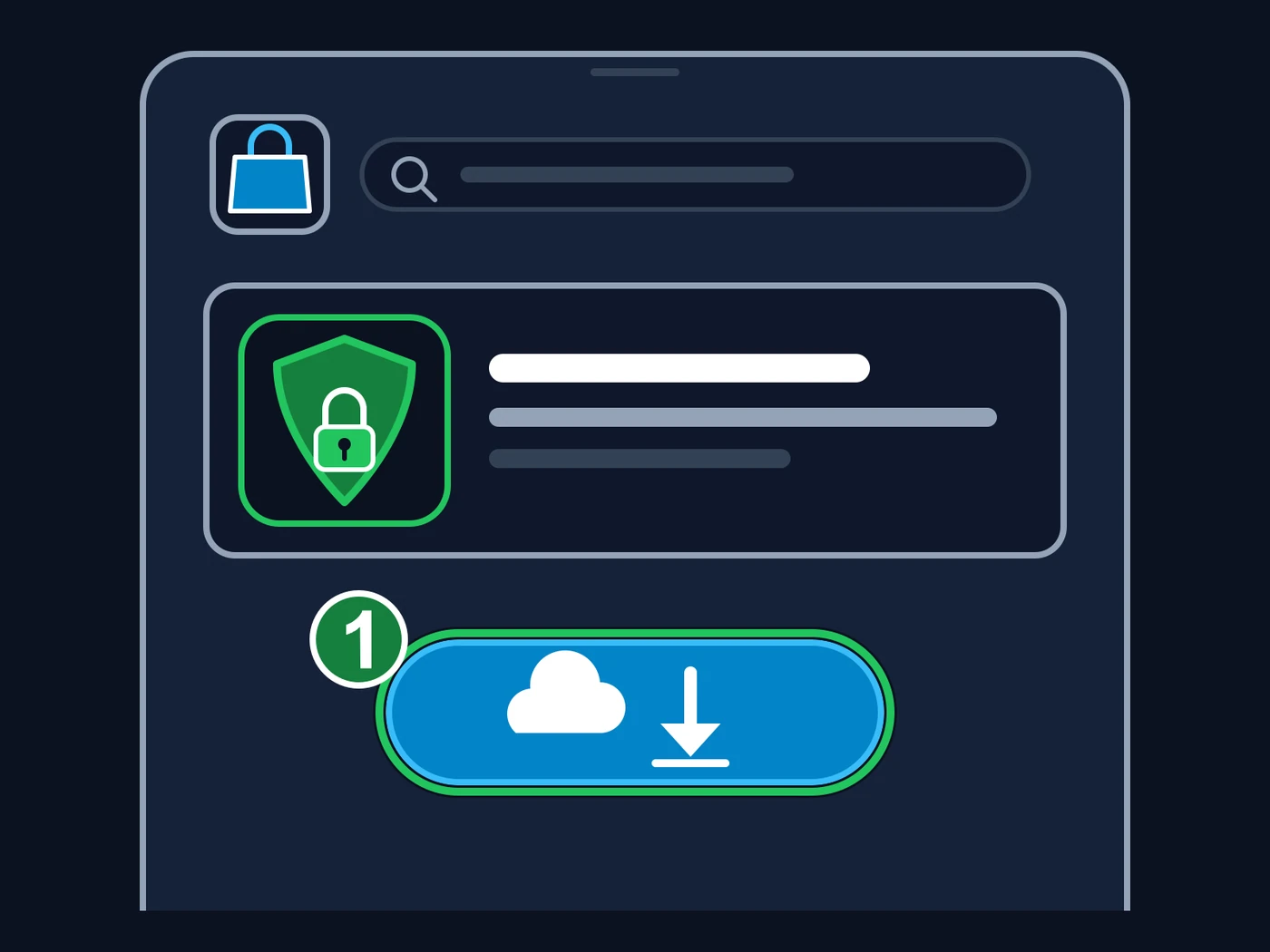
Illustration, not the real screen: the App Store looks different, but the path is the same. 1 — The download button (the cloud with a downward arrow; in the App Store it may read “Get”). Search for “LocalDevVPN” or use the button in this stage, which opens the app’s page directly. The number and the green mark were added to the image. Open LocalDevVPN and tap “Connect”
If the iPhone asks whether it may add VPN configurations, tap “Allow” and type the iPhone passcode. When it works, the “VPN” icon appears at the top of the screen.
Tip: Keep LocalDevVPN connected whenever you install, update or renew apps in SideStore.
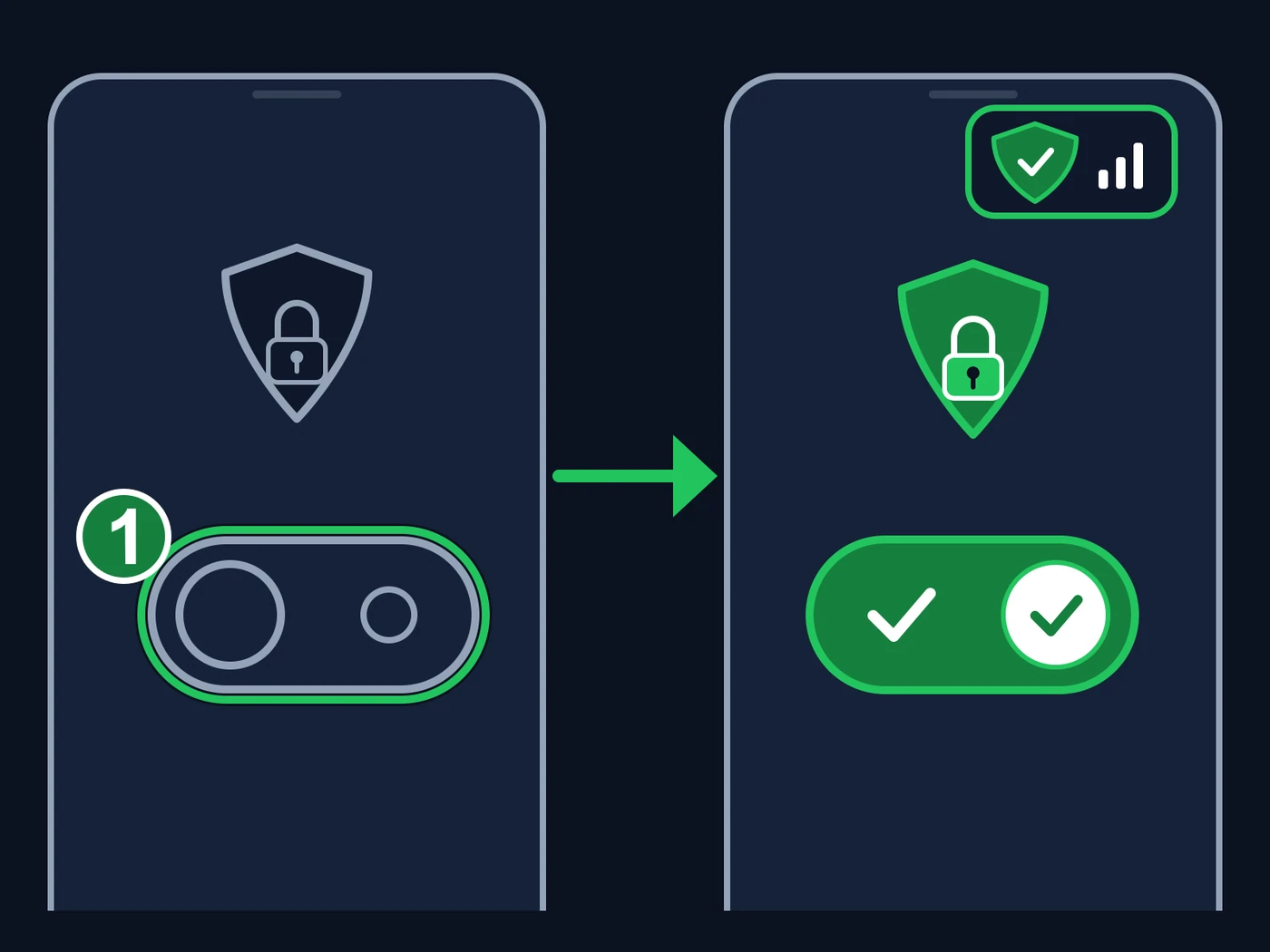
Illustration, not the real screen. 1 — The connect button (in the app it is called “Connect”). Before: everything empty and grey, the VPN is off. After you tap: the shield turns green, the button fills in with a check mark, and the “VPN” icon appears at the top of the iPhone screen, showing it is on. If the iPhone asks to add VPN configurations, accept and type the iPhone passcode. The number and the green mark were added to the image.
Stage 2 of 7
Prepare the computer
On the computer
On Windows, install iTunes
Download it from Apple’s website. iloader needs it to talk to the iPhone. On a Mac, skip this step. 32-bit Windows and Windows 10 on ARM are not supported.
Download iloader
It is the program that puts SideStore on the iPhone. Download it only with the buttons below (official addresses): anyone who sells iloader or offers it on another site is running a scam.
Install iloader and open it
On Windows, open the downloaded file and follow the installer. On a Mac, open the DMG file and drag iloader to the Applications folder.
Stage 3 of 7
Put SideStore on the iPhone
On the computer, with the iPhone on the cable
Connect the iPhone to the computer with the cable
If the iPhone asks “Trust This Computer?”, tap “Trust” and type the iPhone passcode.
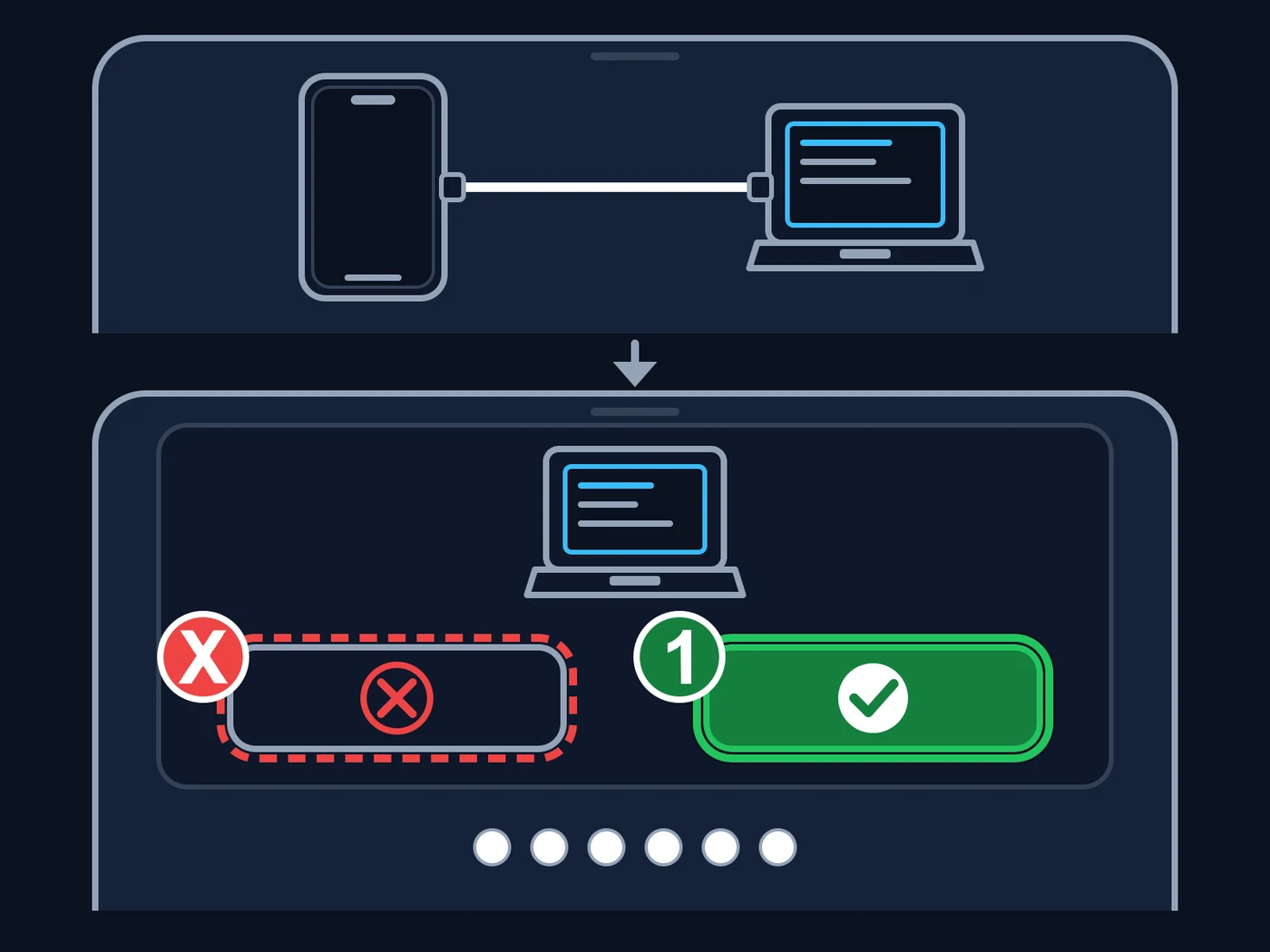
Illustration, not the real screens. Top: connect the iPhone to the computer with the cable. Bottom, the prompt the iPhone shows: 1 — “Trust” (the green button with the check mark): tap it and type the iPhone passcode (the six dots). Red X: the “Don’t Trust” button; do not tap it, because without trust the computer cannot talk to the iPhone. If you tap it by mistake, unplug the cable and plug it in again; the prompt usually comes back. The X, the number and the green mark were added to the image. Sign in to iloader with your Apple account
In the “Apple ID” card (mark 1 in the figure), add your account with the “add account +” link and type the e-mail and password of your Apple account. If your e-mail is already listed as a saved login, use the blue button under it. You type the Apple password only here, in the program installed on your computer. Mind upper and lower case: iloader tells them apart.
Tip: If Apple asks for a verification code, type the one that arrives on your iPhone.
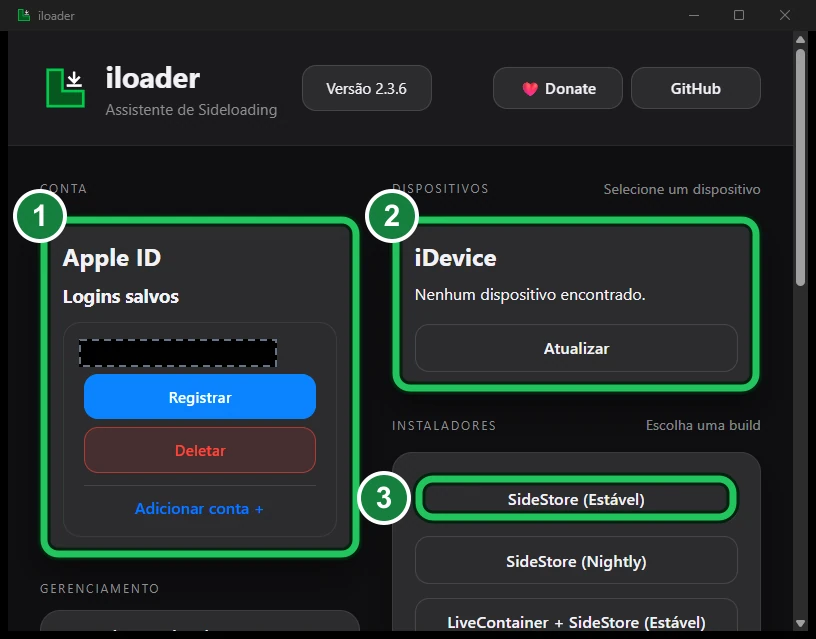
1 — The Apple account: if your e-mail already appears under saved logins, use the blue button below it; otherwise add the account with the link at the bottom of the card. The e-mail in the figure is covered by a black bar. 2 — The iPhone connected by cable appears here (no iPhone was connected for the figure). 3 — The button that puts SideStore on the iPhone (“SideStore (Estável)” in this Portuguese version). This is iloader 2.3.6; yours may differ slightly. The numbers and green marks were added to the image. Choose your iPhone in the device list
With the cable connected, the iPhone appears in the “iDevice” card (mark 2 in the figure). If it does not show up, click the refresh button in that card, change the cable, unplug and plug it in again, and make sure the iPhone screen is on.
Click “SideStore (Stable)” in the installers list
It is mark 3 in the first figure (the figure shows iloader in Portuguese, where the button reads “SideStore (Estável)”). Do not choose the “Nightly” version (a test build) or the options with “LiveContainer”. Wait for it to finish. SideStore appears on the iPhone home screen; it does not open yet, the next stage comes first.
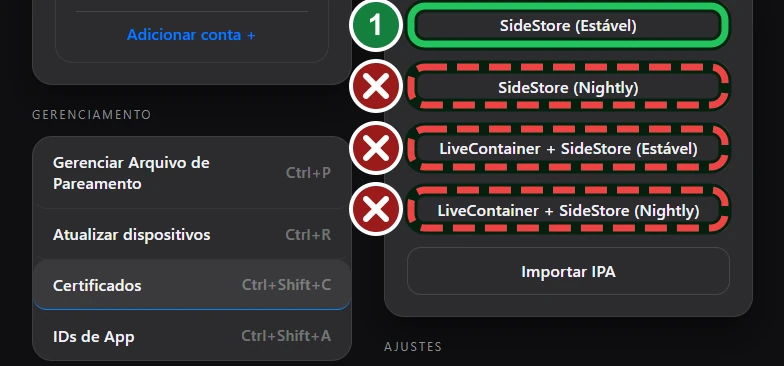
1 — “SideStore (Stable)” (“SideStore (Estável)” in this Portuguese version): the only one this guide uses. With a red X: the test version (“Nightly”) and the “LiveContainer” options, which are not part of this guide. If the list is not in view, scroll the iloader window down.
Stage 4 of 7
Trust SideStore and turn on Developer Mode
On the iPhone
Open Settings → General → VPN & Device Management
Under “Developer App”, tap the name of your Apple account. The figure shows the whole path, from Settings to the trust button.
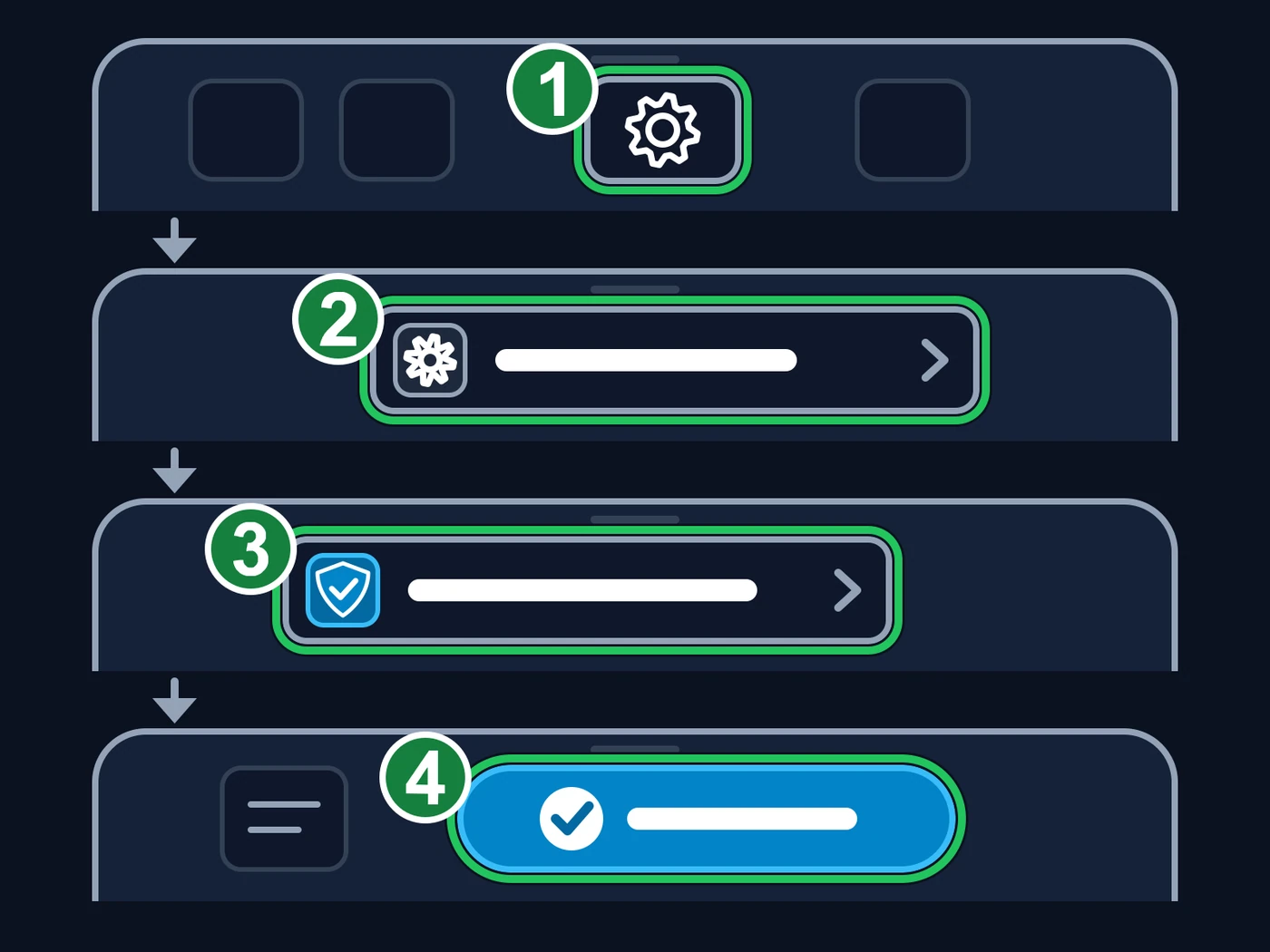
Illustration, not the real screens: the names and the position of the buttons change from one iOS version to another, but the order is this. 1 — Open “Settings” (the gear). 2 — Tap “General”. 3 — Tap “VPN & Device Management”. 4 — Tap the name of your Apple account and then “Trust” (on iOS 18 or newer, “Allow & Restart”). The numbers and green marks were added to the image. Tap “Trust” and confirm
On iOS 18 or newer, the button is called “Allow & Restart”: tap it and type the iPhone passcode.
On iOS 16 or newer, turn on Developer Mode
Open Settings → Privacy & Security, scroll to the bottom and turn on “Developer Mode”. The iPhone restarts. When it comes back, confirm with “Turn On” and type the passcode.
Tip: On iOS 15 this step does not exist: go to the next stage.
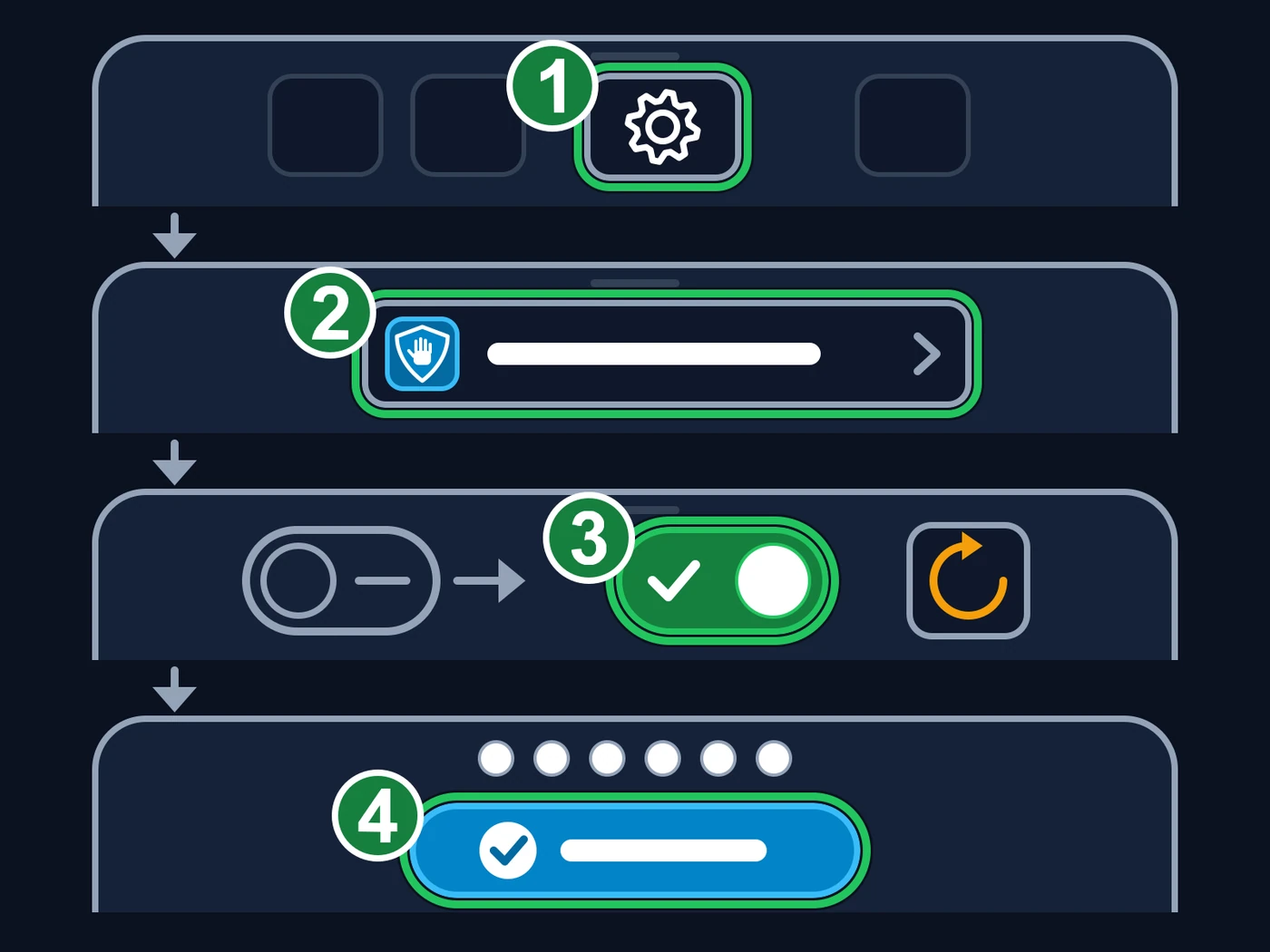
Illustration, not the real screens: the names and the position of the buttons change from one iOS version to another, but the order is this. 1 — Open “Settings” (the gear). 2 — Tap “Privacy & Security” (the shield with the hand) and scroll to the bottom. 3 — Turn on “Developer Mode”: the switch turns green and the iPhone restarts (the circular arrow). 4 — When it comes back, tap “Turn On” and type the iPhone passcode (the six dots). The numbers and green marks were added to the image.
Stage 5 of 7
Open SideStore and sign in
On the iPhone
Open LocalDevVPN and tap “Connect”
After the restart the VPN is disconnected. SideStore only works with it on.
Choose the EXPanda sign-in server (anisette)
To sign in with your Apple account and renew the apps, SideStore uses an “anisette” server. The EXPanda one runs on a real Mac, which Apple accepts; public ones are sometimes refused (error -80045). In Safari on the iPhone, sign in to your account on the EXPanda website, open “Download” and tap “Show my link”: below the source link you will see “The EXPanda sign-in server (anisette)”, with the “Copy the server link” button. In SideStore, open “Settings” → “Anisette Servers”. If there is an imported file (“Catalog File”), tap the red X to clear it. Under “Server Catalog Source”, tap “Edit”, delete the address that is there, paste the link and tap “Done”. In the list, tap “EXPanda (Mac)” and drag it to the top; the others stay as backups.
Tip: The link is yours alone, like the source link: do not pass it on. If you change the source link on the website, the server link changes with it: paste the new one here too. If SideStore asks for the Apple account before you reach “Settings”, sign in and choose the server afterwards; if the sign-in fails, choose the server and try again.
Open SideStore and sign in with the same Apple account as in iloader
Use the same e-mail and password you typed in iloader.
In “My Apps”, tap the “7 DAYS” counter next to SideStore
This is how SideStore renews itself for the first time; the “My Apps” screen appears in the figure of stage 7. If a notice appears about revoking or creating a new certificate, tap “Yes” or “Refresh Now”.
Stage 6 of 7
Install the EXPanda app
On the iPhone
Add the EXPanda source to SideStore
Tap the button below (in the iPhone’s Safari) and sign in with Google if asked. On the downloads page, in the SideStore source section, tap “Show my link” and then “Open in SideStore”. The iPhone asks whether it may open SideStore: tap “Open”. SideStore asks whether to add the source “EXPanda Oficial”: confirm. If that opens nothing, tap “Copy the link” and add it in SideStore on the “Sources” tab (“+” button, mark 1 in the figure). Once the source is in, it appears in the list (mark 2).
With your account, the SideStore source is a link just for you (on “Download”, tap “Show my link”). If you already added the public EXPanda source to SideStore, remove it before adding the personal one: both have the same identifier, and SideStore does not accept two sources with it.
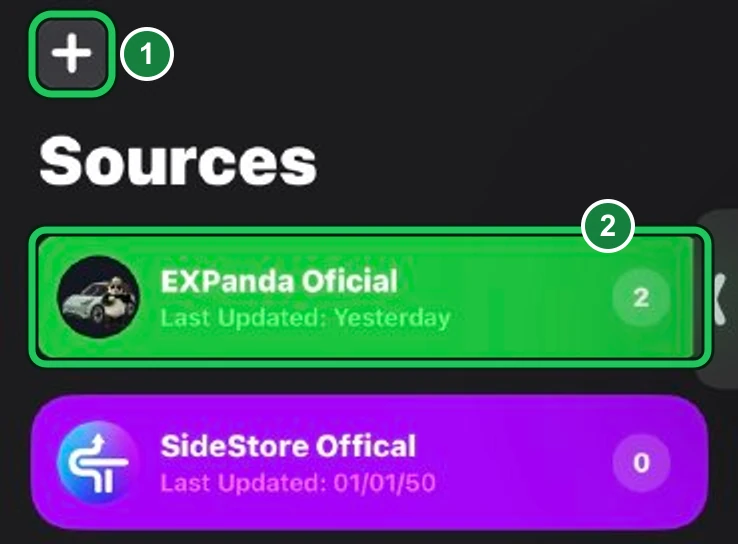
1 — The “+” button adds a source: use it if the button on the page did not open SideStore, and paste the address shown on the page into it. 2 — “EXPanda Oficial”, the source already added; the number on the right is how many apps it has. Screenshot from the owner’s iPhone, with SideStore in English; the status bar was cropped out and the numbers and green marks were added to the image. Close and reopen SideStore before installing
After adding the source, close SideStore (swipe it up in the app switcher) and open it again; only then open the source and go to the next step. Installed straight from the screen the link opened, the app lands on the iPhone, but SideStore does not register it: it does not show up in “My Apps”, the button stays “FREE” and the app is not renewed.
Open the “EXPanda Oficial” source and tap “EXPandaCelular”
Tap the source and, in the “Featured Apps” list, the “EXPandaCelular” row. Ignore the “WebDriverAgent (ferramenta de teste)” item: it is internal to the team and uses one of the iPhone’s 3 slots. And do not tap “REMOVE”: it takes the source off the list.
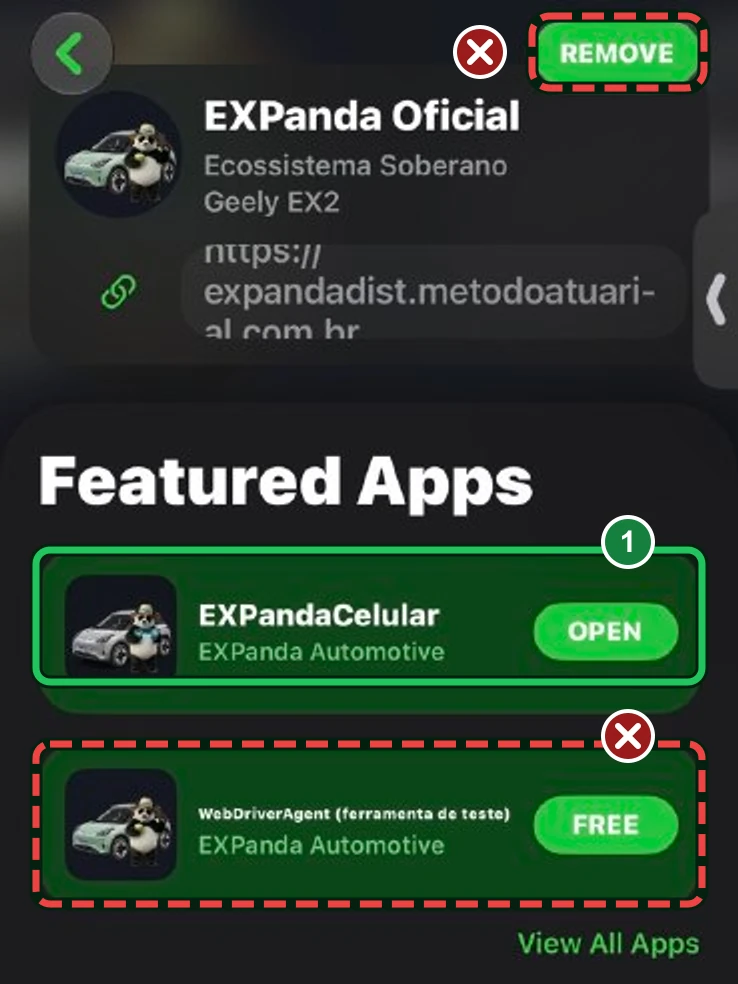
1 — “EXPandaCelular”: tap the row to open the app’s page. With a red X, do not tap: “REMOVE” takes the source off the list, and “WebDriverAgent (ferramenta de teste)” (Portuguese for “test tool”) is an internal team item that takes one of the iPhone’s 3 app slots and is not for normal use. In the screenshot the app was already installed, so the button in the row reads “OPEN”; on your iPhone, before installing, it reads “FREE”. English screenshot; the numbers and marks were added to the image. Tap the green button on the app’s page
It is the button to the right of the app name: before installing it reads “FREE” (or “GET”, depending on the SideStore version). Tap it and wait. On the same page, “What’s New” shows the app version. When it finishes, the button turns into “OPEN” and the app shows up in “My Apps”.
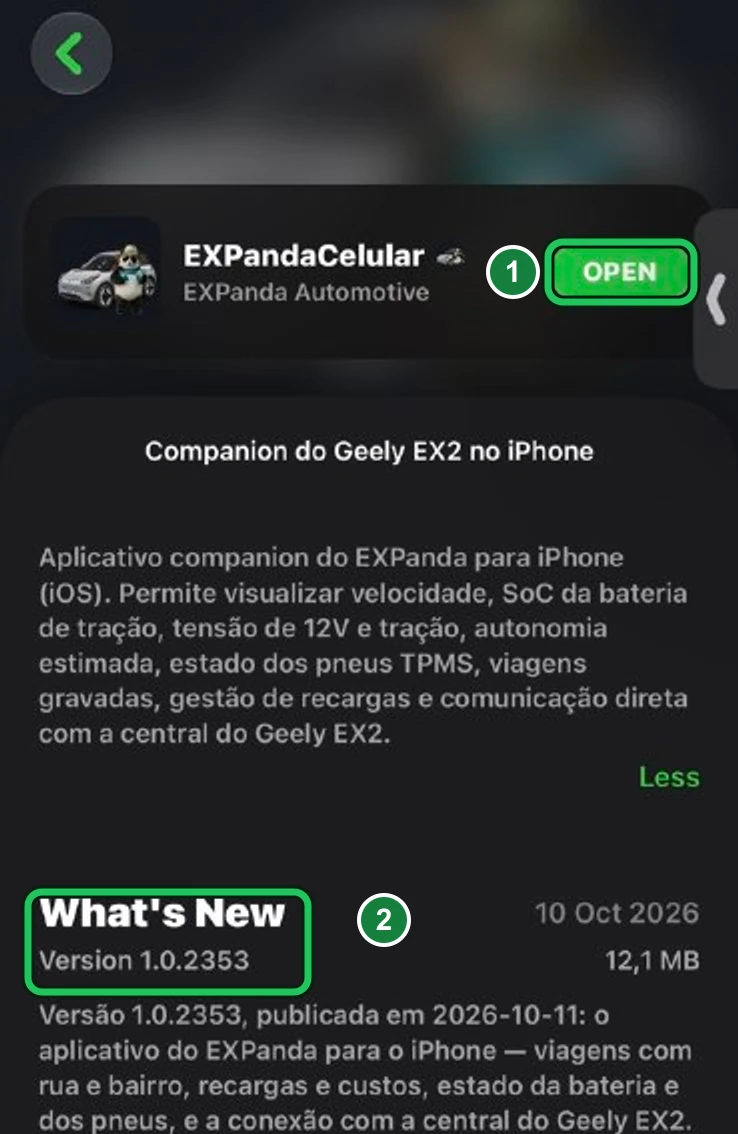
1 — The green button, on the right: before installing it reads “FREE” (in some SideStore versions, “GET”); tap it to install. In the screenshot the app was already installed, so it reads “OPEN”. 2 — “What’s New”: the version number and what changed; check it after updating. English screenshot; the numbers and green marks were added to the image. If SideStore asks about “extensions”, tap the second button
The notice “App Contains Extensions” may appear (the app has 1 extension: the one that mirrors the iPhone screen on the car). Tap the second button, “Keep App Extensions (Register an App ID for Each Extension)” (the text shows cut off): the app is installed with screen mirroring. If it fails, or if you are short on identifiers (App IDs), repeat the install and tap “Remove App Extensions”: the app works, only without screen mirroring. Do not use the first button (“Use Main Profile”), nor “Choose App Extensions” or “Cancel”.
Tip: Each extension uses one identifier (App ID) of the free account, which can only create 10 per week. If the notice does not appear, go on to the next step.
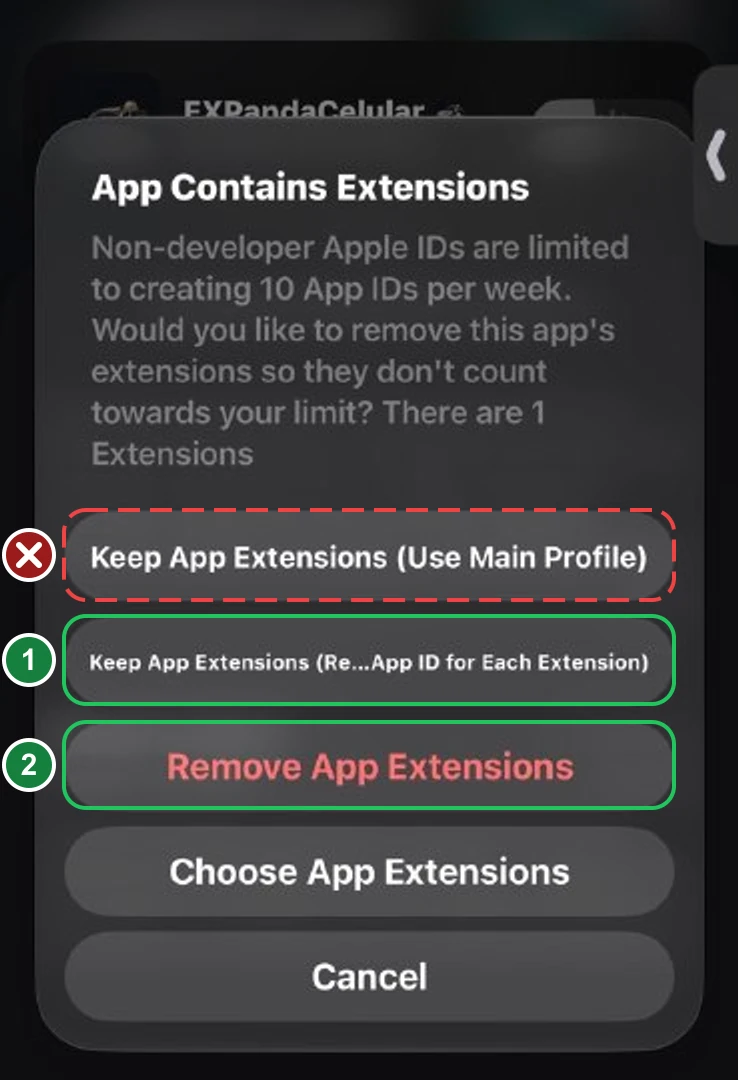
1 — The right button for almost everyone: the second one, “Keep App Extensions (Register an App ID for Each Extension)” (the text shows cut off in the middle). It keeps the screen mirroring extension and uses one more identifier (App ID) of your account, which the notice itself reminds is limited to 10 per week. 2 — “Remove App Extensions”: only if the second one fails or if you are short on identifiers; the app installs and works, but without screen mirroring. Red X: the first button, “Use Main Profile”, do not use; in a test of ours it ended in “app invalid signature”. “Choose App Extensions” (pick which ones) and “Cancel” (give up) are not needed. English screenshot; the X, the numbers and the marks were added to the image. Open EXPandaCelular and accept local network access
The first time, the iPhone asks whether the app may find devices on the local network. Tap “OK”: without it the app cannot find the car. Then sign in with your Google account when the app asks: without the account it shows only the sign-in screen and nothing from EXPanda works.
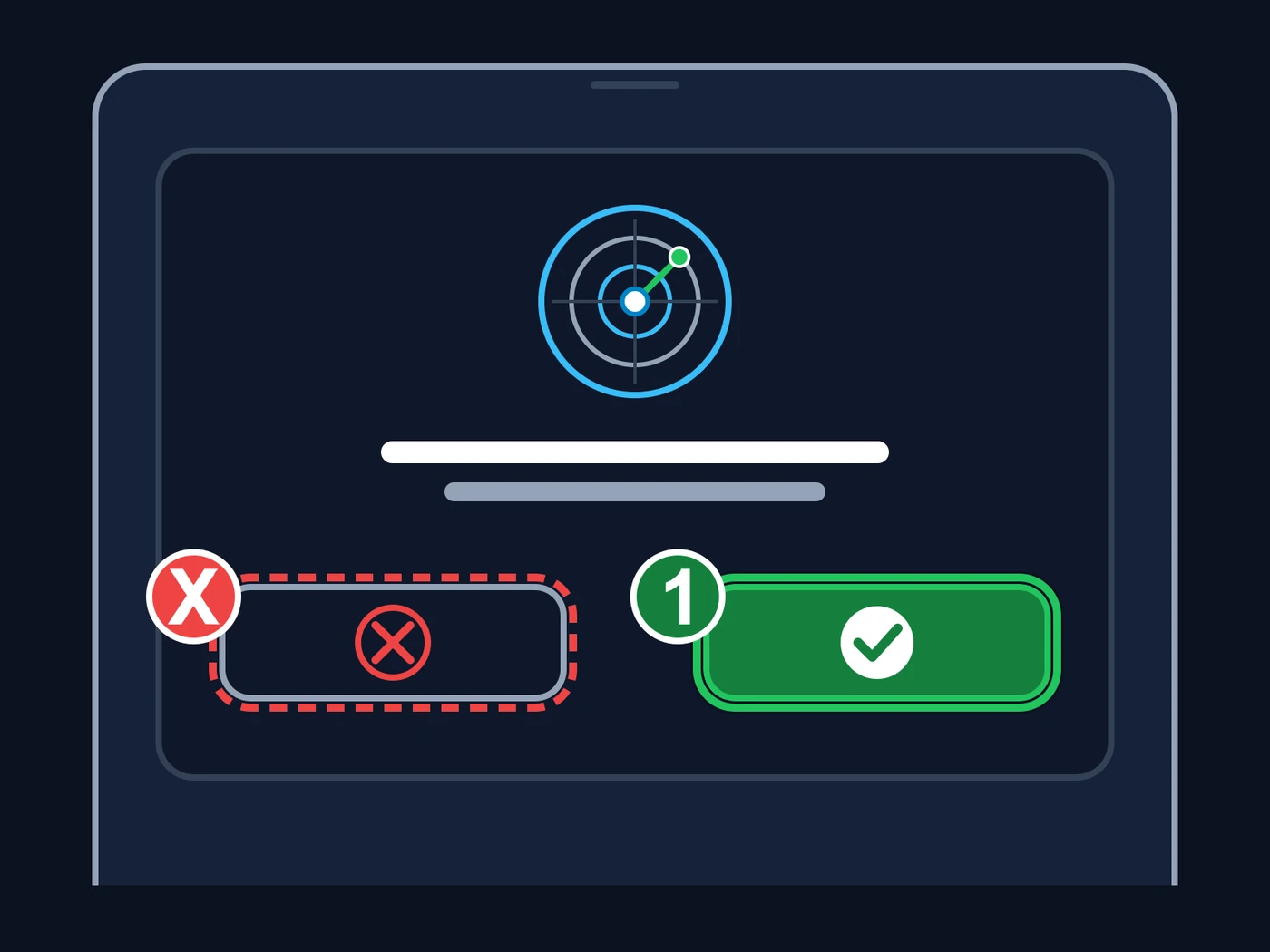
Illustration, not the real screen: the first time, the iPhone asks whether the app may find devices on the local network (the radar). 1 — “OK” (the green button with the check mark): tap it; without it the app cannot find the car. Red X: the “Don’t Allow” button; do not tap it. If you tapped it by mistake, open Settings → Privacy & Security → Local Network on the iPhone and turn on EXPandaCelular. The X, the number and the green mark were added to the image.
Stage 7 of 7
Keep the app working
On the iPhone
Let SideStore renew by itself
SideStore renews the apps in the background so the 7 days do not run out. For that, LocalDevVPN has to be connected: check it from time to time.
Check how many days are left in “My Apps”
Open SideStore → “My Apps”. Each app shows a pill with the days left (marks 2 and 3 in the figure): green when there is plenty, orange when it is close to expiring. At the bottom, “App IDs Remaining” (mark 4) says how many identifiers the account can still create this week.
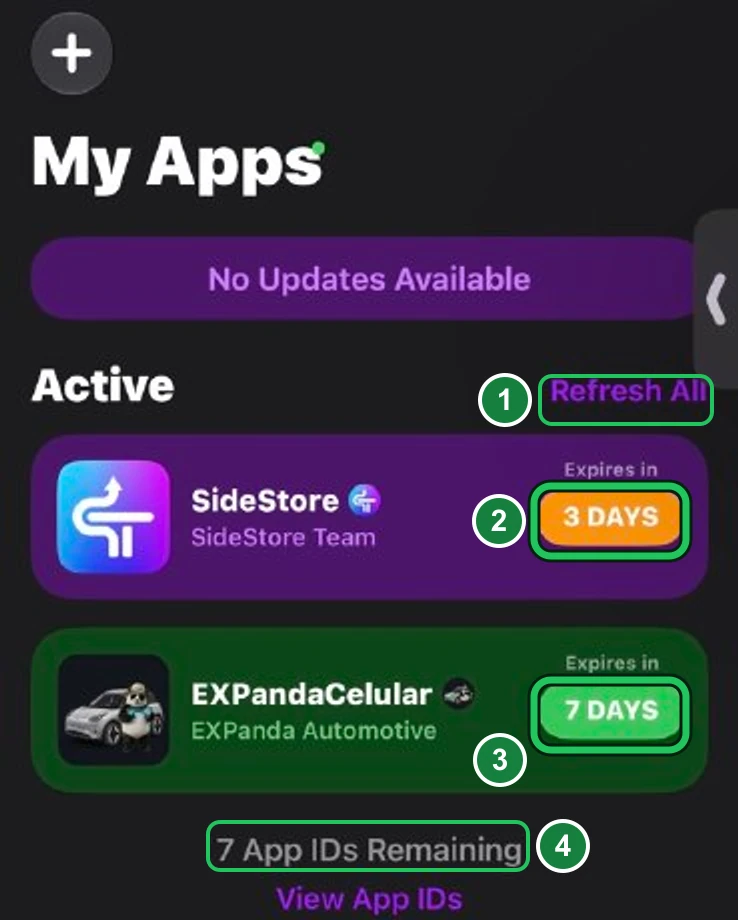
1 — “Refresh All”: renews all apps at once; it is the button we recommend for renewing by hand. 2 — Each app’s days pill: tapping it renews only that app; in the screenshot, SideStore has 3 days left, in orange. 3 — EXPandaCelular has 7 days, in green: it was just renewed. 4 — “App IDs Remaining”: how many identifiers the account can still create this week (the limit is 10; 7 are left here). To renew, LocalDevVPN has to be connected. Screenshot from the owner’s iPhone, with SideStore in English; the numbers and green marks were added to the image. If the app stops opening, or few days are left, renew by hand
Open LocalDevVPN and tap “Connect”. In SideStore → “My Apps”, tap “Refresh All” (mark 1 in the figure) to renew all apps at once, or the days pill next to an app to renew only that one. When it finishes, the pill goes back to “7 DAYS”.
Tip: Renewing is not reinstalling: do not delete the app or SideStore to renew.
When a new version comes out, update through SideStore
In “My Apps”, “Update” appears next to the app (on the app’s page, the button does the same). After updating, open the app and check on “Connection” that it is still connected to the central.
If something goes wrong
“Device Registration Error” or “DeviceEndpointNotInitialized” (SideStore cannot reach the device).
Check that LocalDevVPN is connected. Disconnect and connect again. If it persists, restart the iPhone, connect LocalDevVPN and try again.
SideStore says the “pairing file” expired, or errors after an iOS update.
Connect the iPhone to the computer and open iloader. At the bottom of the window, in the settings, click “Delete Stored Pairing” (in the Portuguese version: «Apagar pareamento armazenado»), choose the iPhone and tap “Trust” on the device. Then, in the management group, click “Manage Pairing File” (shortcut Ctrl+P; «Gerenciar Arquivo de Pareamento» in Portuguese) and, next to “SideStore”, click “Place”. A green success message appears.
Error signing in with the Apple account in SideStore.
The most common cause is the sign-in server (Anisette) being down or refused by Apple. Use the EXPanda server (stage 5): in “Settings” → “Anisette Servers”, tap “EXPanda (Mac)”. If it is not in the list, paste again the server link shown on the EXPanda website, under “Download” → “Show my link”. Then try to sign in again.
SideStore or iloader shows “The operation couldn’t be completed” with the number -80045 (or 503) when signing in with the Apple account, installing or refreshing.
Almost always this is Apple refusing the sign-in request, not your iPhone or your account. Go in this order and stop when it works: (1) stop trying for a few hours — every attempt counts toward Apple’s limit and makes the block worse; (2) on the computer, sign in with the same Apple ID in the latest iloader: if it signs in, the account is fine and the problem is only on the SideStore path; if it fails too, wait or try another network (the phone’s 4G changes your address); (3) in SideStore, in “Settings” → “Anisette Servers”, choose “EXPanda (Mac)”, the EXPanda sign-in server (stage 5), delete the “adi.pb” (reset the Anisette state), then sign out and sign in again; (4) with LocalDevVPN connected, try to refresh again; (5) if nothing works, refresh with Sideloadly on the computer (the “Sideloadly” path in this guide) and try SideStore again later. Never create several Apple accounts to keep trying.
iloader cannot sign in with the Apple account.
Check the e-mail and password (upper and lower case matter) and, if Apple asks for two-factor verification, type the code that arrives on your iPhone. At the bottom of the iloader window, in the settings, click the button that resets the Anisette state (in the Portuguese version, «Reiniciar estado Anisette») and try again. If it persists, wait a little: the verification server (Anisette) is sometimes down.
“maximum number of installed apps using a free developer profile” appears (3-app limit).
The iPhone already has 3 apps installed this way. Delete one (press and hold its icon → “Remove App”) and try again.
SideStore refuses because of the identifier (App ID) limit, such as error “0xe8008015”.
A free account only creates 10 identifiers per week, and each one comes back 7 days after it was created. In “My Apps”, the “App IDs Remaining” line shows how many are left. Wait or, if you prefer, install without the extension (in the “App Contains Extensions” notice, tap “Remove App Extensions”): it uses one more identifier.
The app opens and closes right away, or says the developer is not trusted.
Redo stage 4 (Settings → General → VPN & Device Management → Trust) and check that Developer Mode is on.
EXPandaCelular (or SideStore itself) stopped opening after a few days: the day counter reached zero.
The app expired. Connect LocalDevVPN, open SideStore and, in “My Apps”, tap “Refresh All” (stage 7). If SideStore itself no longer opens, the iPhone needs the computer again: connect it by cable and redo stage 3 with iloader, without deleting the app from the iPhone.
The app opens only on the sign-in screen, asking for the account.
That is expected until you sign in: without the account nothing from EXPanda works. Tap “Sign in with Google” and use the same account as on the EXPanda website. If you already signed in and the screen comes back, check the phone’s internet and try again.
When installing EXPandaCelular, SideStore says “archive appears to be corrupt”, refuses the download or shows the news “The EXPanda source has moved”.
SideStore still has the old public source, which no longer delivers the app. In “Sources”, remove the “EXPanda Oficial” source and add your personal source (on the EXPanda website, “Download” → “Show my link”; stage 6). Then close and reopen SideStore and install again.
EXPandaCelular was installed but does not show up in “My Apps” (on the app page, the button is still “FREE”).
The app was installed from the screen the source link opened, and SideStore did not register it: that way it is not renewed and expires in 7 days. Close and reopen SideStore, open the source, tap “FREE” again and wait, without deleting the app: it is installed over the old one, the button turns into “OPEN” and the app starts showing up in “My Apps”.
Done? Now install the central in the car
With the app open, go back to the central guide and continue from step 4. Honest warning: installing the central from an iPhone is still being validated. If the app does not find the car, do only step 4 with an Android phone.
Go to step 4 of the guide